Note: Yahoo Mail does not offer a direct email import tool. As a workaround, you can use the new Outlook application to transfer your Hughes.net emails into Yahoo Mail. You do not need an Outlook email address. Just install the new Outlook app, connect your Yahoo account, and import your exported Hughes.net emails into your Yahoo folders.
| Before you begin You need a computer or a laptop, your Hughes.net username and password, a Yahoo Mail account, and the new Outlook application installed on a Windows computer. If you do not have a Yahoo account, create one here before continuing. |
Part 1: Set up Yahoo in the new Outlook
Step 1: Create a Yahoo account, if needed
If you do not have a Yahoo account, open Yahoo Mail, select Create account, and complete the registration and verification prompts. If you already have a Yahoo account, confirm that you can sign in.
Step 2: Install the new Outlook and add Yahoo
Install and open the new Outlook. Enter your Yahoo email address and select Continue. If you do not have the new Outlook Download the new Outlook.
Note: If you are already logged into the new Outlook using the Outlook email, click on File > Account Info. Under Accounts > Your Accounts > Click Add Account and enter your Yahoo email and Select Continue.
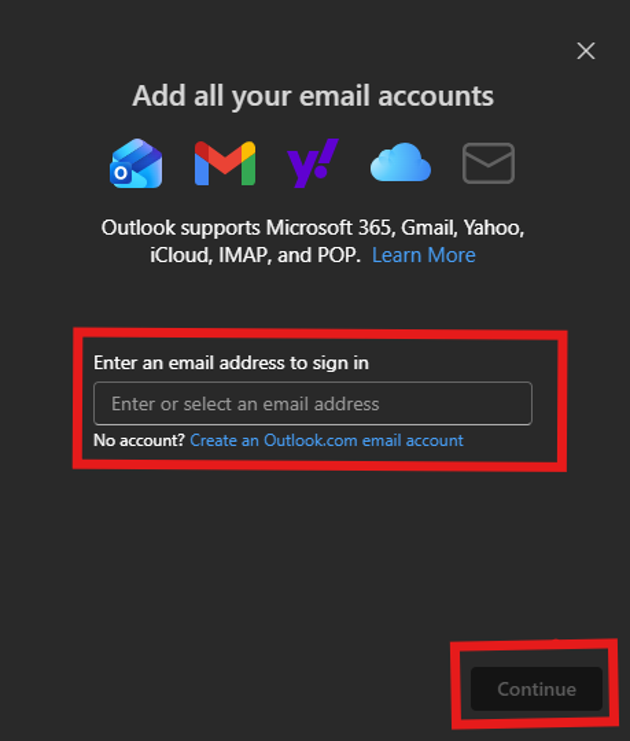
Step 2: Install the new Outlook and add Yahoo
Step 3: Complete Yahoo sign-in
Follow the Yahoo prompts in the web browser. Select Continue, confirm your Yahoo address, enter your Yahoo password, accept the permissions, and return to Outlook. Confirm that your Yahoo email address appears in the left navigation pane.
| Checkpoint Do not continue until your Yahoo email address appears in Outlook. |
Part 2: Export your Hughesnet email
Step 4: Open Hughes.net Email
Go to myhughesnet.com and sign in with the Hughes.net username and password associated with the Hughes.net mailbox you want to move. Select “My Email” from the header.
Step 5: Export the mailbox
In Hughes.net Email, select Settings > Accounts. Expand the account, scroll to Export, and select Export. The archive is normally saved in your Downloads folder in your device.
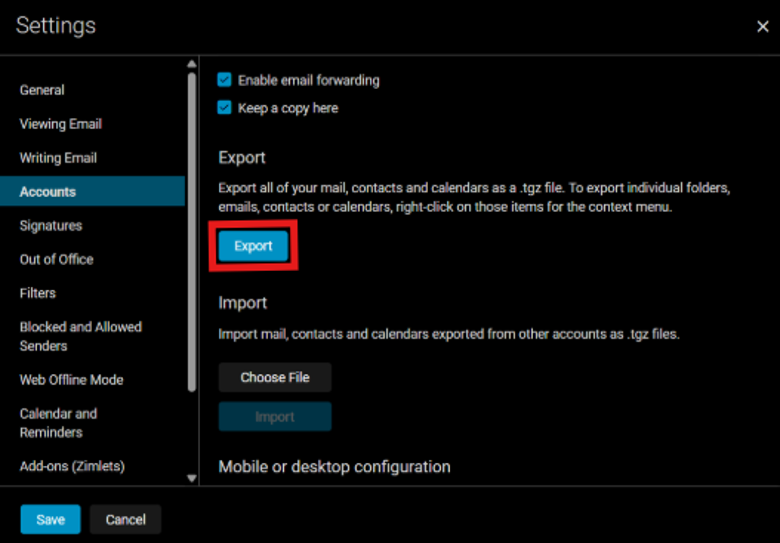
Step 5: Export the mailbox
Step 6: Extract the downloaded archive
In File Explorer, open “Downloads”. Right-click the downloaded archive and select “Extract All”. Save it somewhere easy to find. Keep the Inbox, Sent, Drafts, and other extracted folders together.
Part 3: Import Hughesnet email into Yahoo Mail
Step 7: Open the .eml import tool
In the new Outlook, select File > Account info > Data files. Under Email Files (.eml), select Start import.
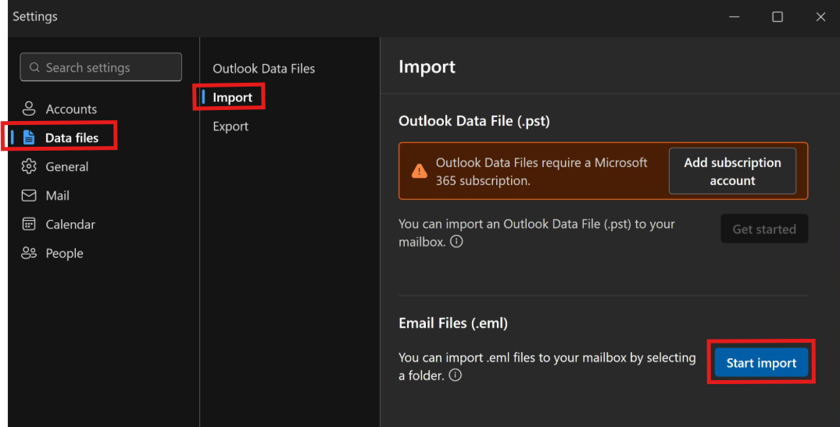
Step 7: Open the .eml import tool
Step 8: Import Hughes.net folders into Yahoo
It will open your file explorer, browse for the extracted Hughes.net Inbox folder and click upload. Select “Upload” in the pop up if prompted again. Under Choose destination, select a folder under your Yahoo email address, such as Inbox or a new folder named Hughes.net Inbox. A separate folder, such as Hughes.net Inbox, can make the imported messages easier to find. Select “Import”. Repeat this step for Sent, Drafts, and any other folders you want to keep.
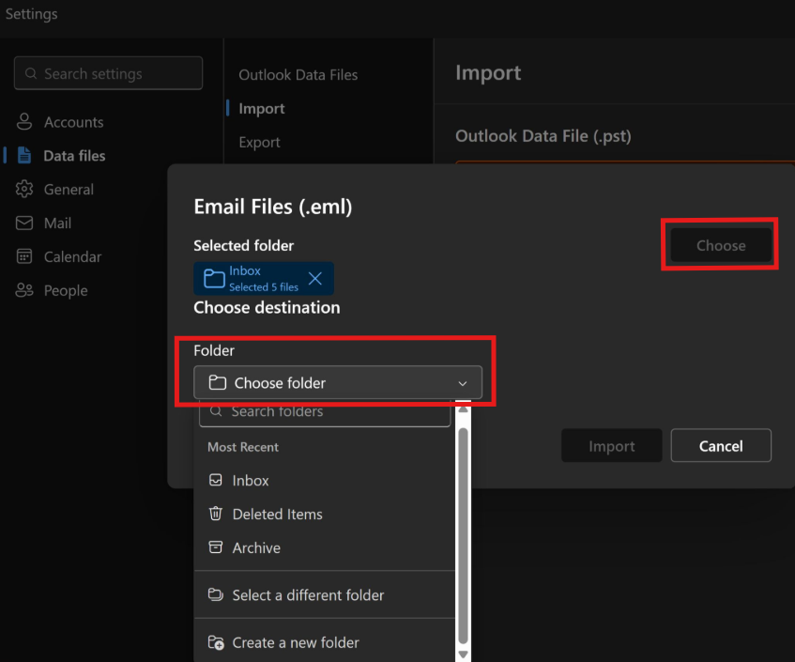
Step 8: Import Hughesnet folders into Yahoo
Step 9: Verify the migration
Review History on the Outlook import page. Then sign in directly to Yahoo Mail in a browser and confirm that the imported folders and messages are visible. Open several messages and check their dates, content, and attachments.
Note: The migration process may take anywhere from a few minutes to an hour, depending on the size of your inbox. Please allow some time for the migration to complete before checking for your emails.
| Important: Secure the downloaded Hughes.net archive and extracted folders until you have verified all required email directly in Yahoo Mail. |
Related FAQs:
For instructions on how to migrate your Hughes.net emails to Gmail, click here.