Follow these steps to create or use a Gmail account, move your Hughes.net messages, and update your email address before November 16, 2026.
Important deadline
Complete the email move and update your address with important contacts before November 16, 2026.
Use a desktop or laptop
These steps are easiest on a computer. Keep this page open in a separate browser tab while you work.
Before you start
Have these ready
Your full Hughes.net email address, your Hughes.net password, and the Gmail account that will receive your messages.
- Make sure you can sign in to your Hughes.net mailbox.
- Your emails may take several hours, or up to 2 days for larger mailboxes, to appear in Gmail.
- Keep both accounts available until you confirm the messages you need are in Gmail.
- Do not delete messages from Hughes.net until you finish checking the move.
Drafts and Deleted items need extra attention
Drafts and Deleted items do not move through this process. Send or save anything important from those folders before November 16, 2026.
1. Create a Gmail account, if needed
Already have a Gmail account you want to use? Skip to “Move your Hughes.net email.”
Open the Google account sign-up page
Use a desktop or laptop.
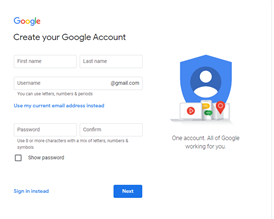
Create your account
Enter your name, choose a Gmail address, and create a password. Write down your new Gmail address in a safe place.
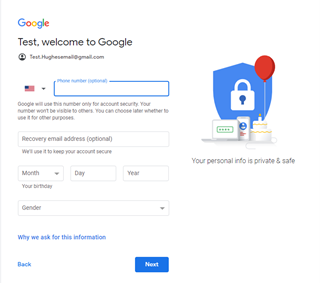
Add recovery information
A phone number and recovery email can help you recover the account later.
2. Move your Hughes.net email
Complete these steps while signed in to the Gmail account that will receive your Hughes.net messages.
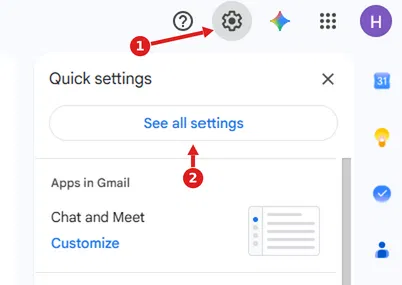
Open Gmail settings
Select the Settings gear in the upper-right corner, then select See all settings or Settings.
Open Accounts and Import
At the top of the Settings page, select Accounts and Import.
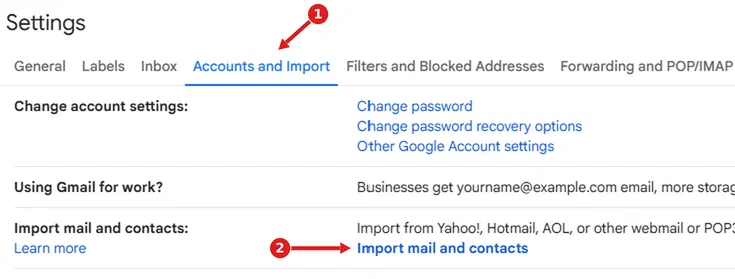
Start the import
Under Import mail and contacts, select Import mail and contacts. If you see Check mail from other accounts instead, select Add a mail account.
Enter your Hughes.net information
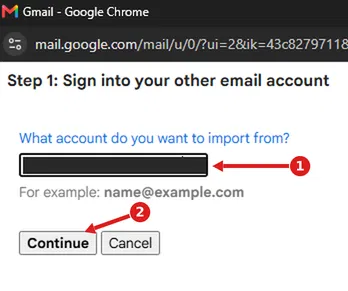
Enter your full Hughes.net email address and select Continue. Then enter your Hughes.net password. Confirm the address and username are yours.
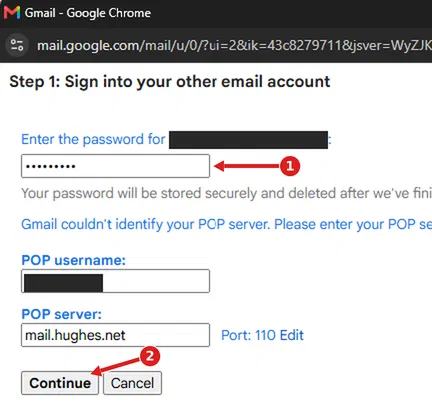
Password not accepted?
First confirm you can sign in directly to Hughes.net. Then carefully re-enter the same address and password. Check Caps Lock. Never share your password.
Choose what to import
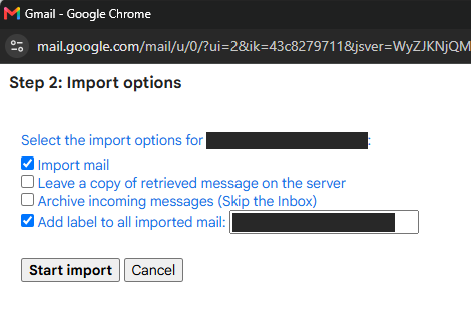
Select Import mail and Add label to all imported mail. Leave the other options unchecked and select “Start import”.
Start the import
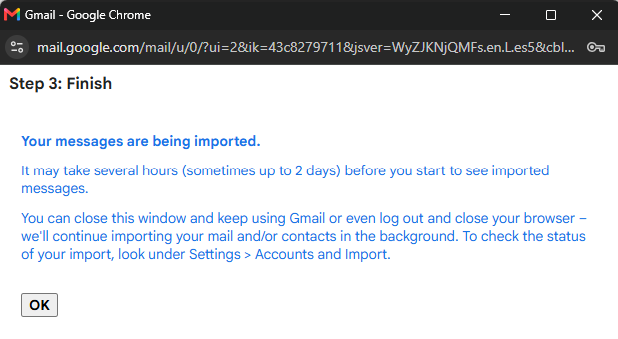
Select Start import, then OK. You can continue using Gmail while the import runs.
Seeing this error?
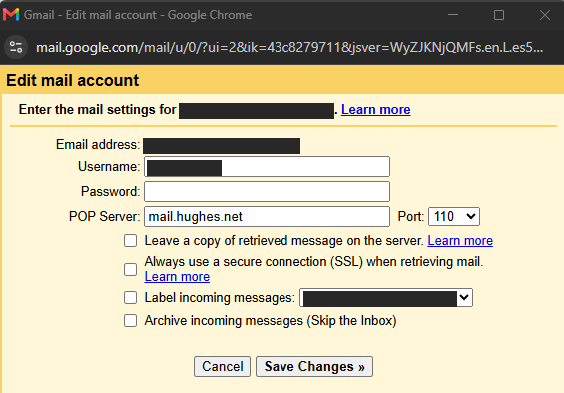
If Gmail shows “POP Server cannot be verified. Please confirm your POP Server. There is a problem connecting to mail.hughes.net” follow steps 7 and 8 below to update your settings. If not, proceed to the next section.
Check the import status
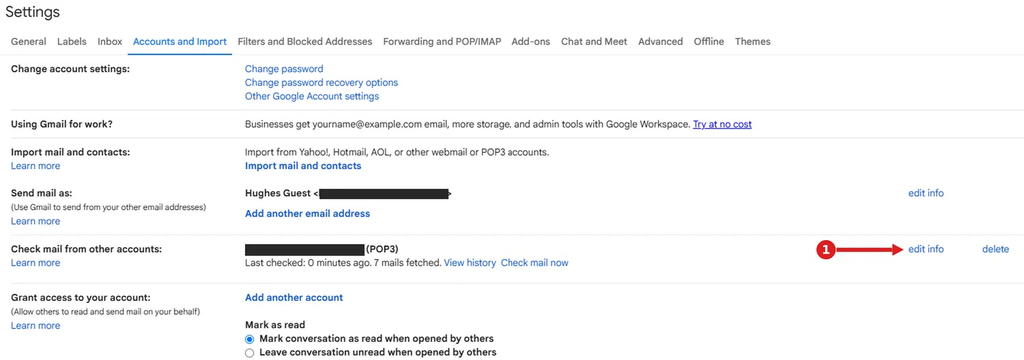
Return to Settings, then Accounts and Import. Look under Import mail and contacts or Check mail from other accounts.
Confirm the label, if shown
If Gmail shows Edit info for the Hughes.net account, confirm Label incoming messages is selected. Validate the Email address; the POP server should be mail.hughes.net, and the port number should be 110. Enter your password if requested, then select Save Changes.
3. Make sure the move worked
Check these items before you consider the move complete.
- Open the Gmail Inbox and look for recent Hughes.net messages.
- Open the label with your Hughes.net email address.
- Search for an older message by sender, subject, or a word you remember.
- Check that important contacts are available.
- Save or send important Drafts and Deleted items separately.
Something missing?
Allow the import time to finish, then check again. Confirm the Hughes.net password and account information are correct. Items in Drafts or Deleted must be moved manually.
4. Update your email address
Moving messages does not change the email address held by banks, healthcare providers, websites, family, or friends. Update those accounts directly before November 16, 2026.
Be sure to update your email address on your Hughesnet account as well. Go to myhughesnet.com and navigate to Account > My Information.
Do not rely on forwarding
Forwarding can help during the transition, but it will not continue after the Hughes.net email platform ends.
Start with important accounts
- Banking and credit cards
- Insurance and healthcare
- Utilities and government services
- Employer, benefits, and retirement
- Online shopping and deliveries
- Subscriptions and memberships
- Family, friends, and community groups
- Account recovery email addresses
Tips to find important emails
Search for these words one at a time: verification, password, security code, statement, bill, receipt, order, subscription, renewal, appointment, insurance, bank, and payment.
Safety tip
Use each company’s official website or app to change your email address. Do not use an unexpected password reset or account update link in an email.
Troubleshooting and common questions
When will my emails appear?
The import may take several hours and, for larger mailboxes, up to 2 days. Check the import status in Gmail and review the account again later.
Will messages sent to Hughes.net keep reaching me?
Only during the transition if forwarding is active. Forwarding will not continue after November 16, 2026. Update your address directly with important contacts and organizations.
Why are Drafts or Deleted items missing?
Those folders do not move through this process. Send or save anything important from them before November 16, 2026.
Gmail says my password is wrong. What should I do?
Confirm that you can sign in to Hughes.net with the same full email address and password. Re-enter the password carefully and check Caps Lock.
How do I know I am finished?
Confirm that recent and older messages are visible in Gmail, important Drafts and Deleted items are saved separately, and important contacts and accounts have your new address.
Final reminder
Move your email, check the messages you need, and update your address with important contacts before November 16, 2026.