A thriving online hub where Hughesnet® customers can ask questions and share information with each other about their Hughesnet service, as well as get answers from official Hughesnet representatives. It’s a great resource for making the most of your Hughesnet service!
The Hughesnet Community offers information by categories and a robust search function that will auto populate as you type to help you get exactly what you are looking for – fast.
Where do I access the Community?
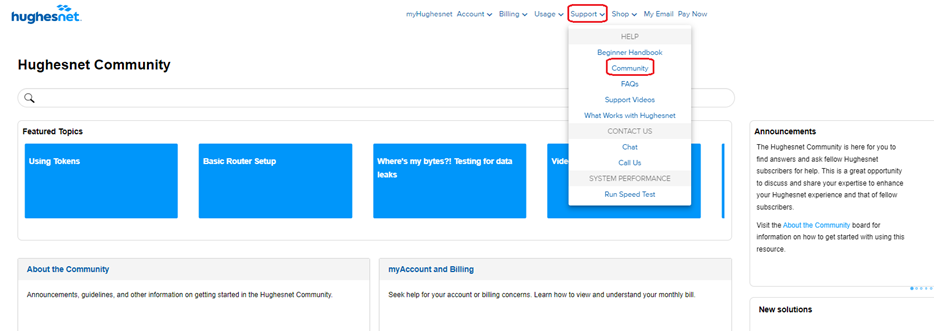
To access the Hughesnet Community, simply go to myhughesnet.com, click on ‘Support’, and then on ‘Community’. Alternatively, you can directly visit community.hughesnet.com
Do I need a myhughesnet.com username and password to access Hughesnet Community?
The Hughesnet Community is open to the public, but some features are only available to Hughesnet customers. To access all the features, log in with your myhughesnet.com username and password.
A feature, previously known as SmartBrowsing, that optimizes your Web experience.
Hughesnet® automatically compresses and optimizes web content with built-in SmartTechnologies™, to make Web pages load faster while using less of your data.
The feature, previously known as SmartBrowsing was available in limited areas.
Hughesnet® Gen4 and Hughesnet Gen5 service plans feature Unlimited Data with No Hard Data Limits. If you exceed the amount of data in your plan, we won’t cut you off or charge you more. You stay connected at reduced speeds, typically 1-3 Mbps. Major streaming providers state on their websites that watching videos with DVD quality (aka Standard Definition) is possible at .5 to 1.5 Mbps (you can refer to the chart below). In periods of network congestion, speed may be slower and could be less than 1 Mbps which may mean that some applications will be slower to run, and you may see buffering in video playback. You can purchase extra data, called Data Tokens, to bring you back to full speed.
You can delay automatic Windows updates from installing on your PC until the Bonus Zone hours to maximize your Service Plan Data.
Why does Windows update automatically?
With automatic updating, Windows automatically checks for the latest updates for your computer. You don’t have to search for updates online or worry that critical fixes for Windows might be missing from your computer.
You can fully utilize all of your Hughesnet® data by rescheduling your updates to occur during the Bonus Zone (formerly Bonus Bytes) of 8 PM and 2 AM.
How do I schedule Windows Updates?
On Windows 11:
Select Start > Settings > Windows Update .
Select the amount of time you’d like to pause for.
Note: After the pause limit is reached, you’ll need to install the latest updates before you can pause updates again.
Your device will need to restart to finish installing updates. If you’re asked to restart your device while you’re busy using it, you can schedule the restart for a more convenient time:
Select Start > Settings > Windows Update .
Select Schedule the restart and choose a time that’s convenient for you.
Select either Pause updates for 7 days or Advanced options. Then, in the Pause updates section, select the drop-down menu and specify a date for updates to resume.
Note: After the pause limit is reached, you’ll need to install the latest updates before you can pause updates again.
Your device will need to restart to finish installing updates. If you’re asked to restart your device while you’re busy using it, you can schedule the restart for a more convenient time:
A Phishing Email is a fake email that looks like it came from a company you do business with and asks you for private information such as your username and password, social security number, or credit card information. Scammers send these emails to get your private data and commit fraud, which may involve charging unwanted items to your credit card or impersonating your identity.
Hughesnet® may contact customers in certain circumstances to verify or update information. Emails from Hughesnet will direct you to access your account online securely with your Username and Password or direct you to call Customer Care. Hughesnet will never ask you to reply to an email with any personal information.
Steps You Can Take to Make Sure You Don’t Fall for Phishing Scams
Be suspicious. Do not give out personal account information, such as usernames, passwords, and account numbers over the phone or in an email.
Look but don’t click. A phishing scam may have malicious links in legitimate-sounding copy.
Check for spelling errors. Legitimate messages usually do not have spelling mistakes or poor grammar. Also, never open an attachment from someone you do not recognize.
Beware of urgency. Urgent or threatening language is a common phishing tactic to invoke a sense of urgency or fear.
If you have questions or concerns, please contact Customer Care at 866-347-3292
I Think I Received, Responded-to Or Have Been Scammed. What Should I Do?
If you responded to a fraudulent email, immediately alert your bank and/or credit card company.
If you received spam that is phishing for information, forward it to spam@uce.gov.
Find the active Hughesnet® services on your account.
Which service plan am I on?
You can find your plan details on the ‘My Services & Plan’ page on myhughesnet.com.
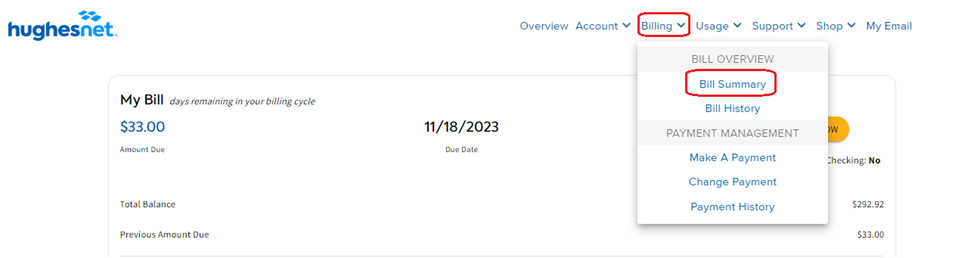
1. Sign-In or Register on myhughesnet.com. Once logged in, click on ‘Account’ then ‘My Services & Plan’. On this page you can see all of your current Hughesnet services.
You may also contact Customer Care for help regarding your service plan. A Customer Care representative is available 24 hours a day at 866-347-3292.
Do I have other Hughesnet services?
From the same screen above you can view all of your active Hughesnet subscriptions.
How do I manage my services?
You can easily manage your services by clicking on the ‘Change Plan’ to the right of the product listing or the plus sign then ‘Manage’ or ‘Cancel My Subscription’ under ‘My Optional Services’.
Changes made to product subscriptions will be pro-rated on your billing statement effective as of the date you made the change.
How do I add additional services to my account?
Learn more about Hughesnet Optional Services by clicking ‘Shop’ at the top of the page.
If you exceed your Service Plan Data, you will stay connected, but may experience reduced speeds until the next billing cycle. Data Tokens are a great way to restore your high-speed data.
You can purchase Data Tokens from:
myhughesnet.com
Sign in or register on myhughesnet.com. Once logged-in, click on ‘Usage’ and ‘Data Token Purchase’ in the second menu.
myHughesnet (Mobile) App
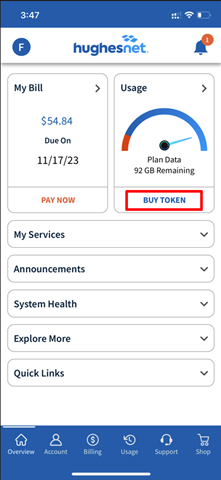
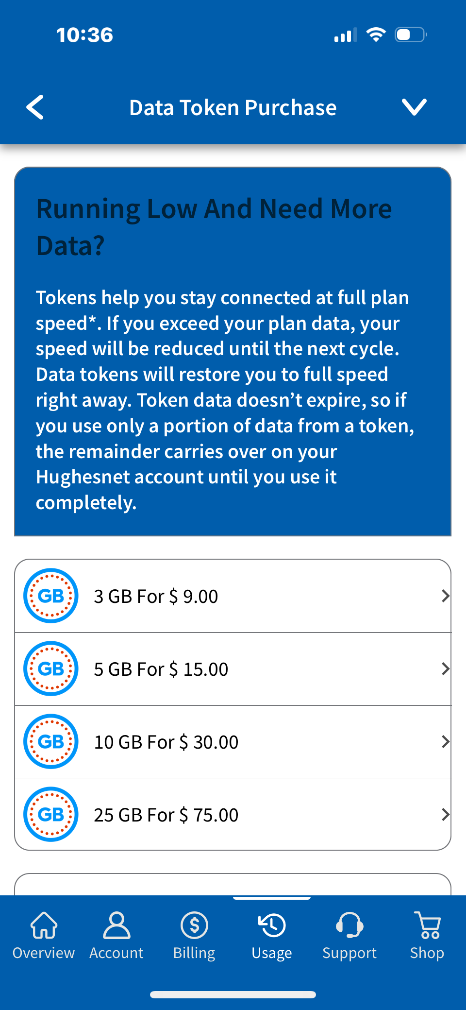
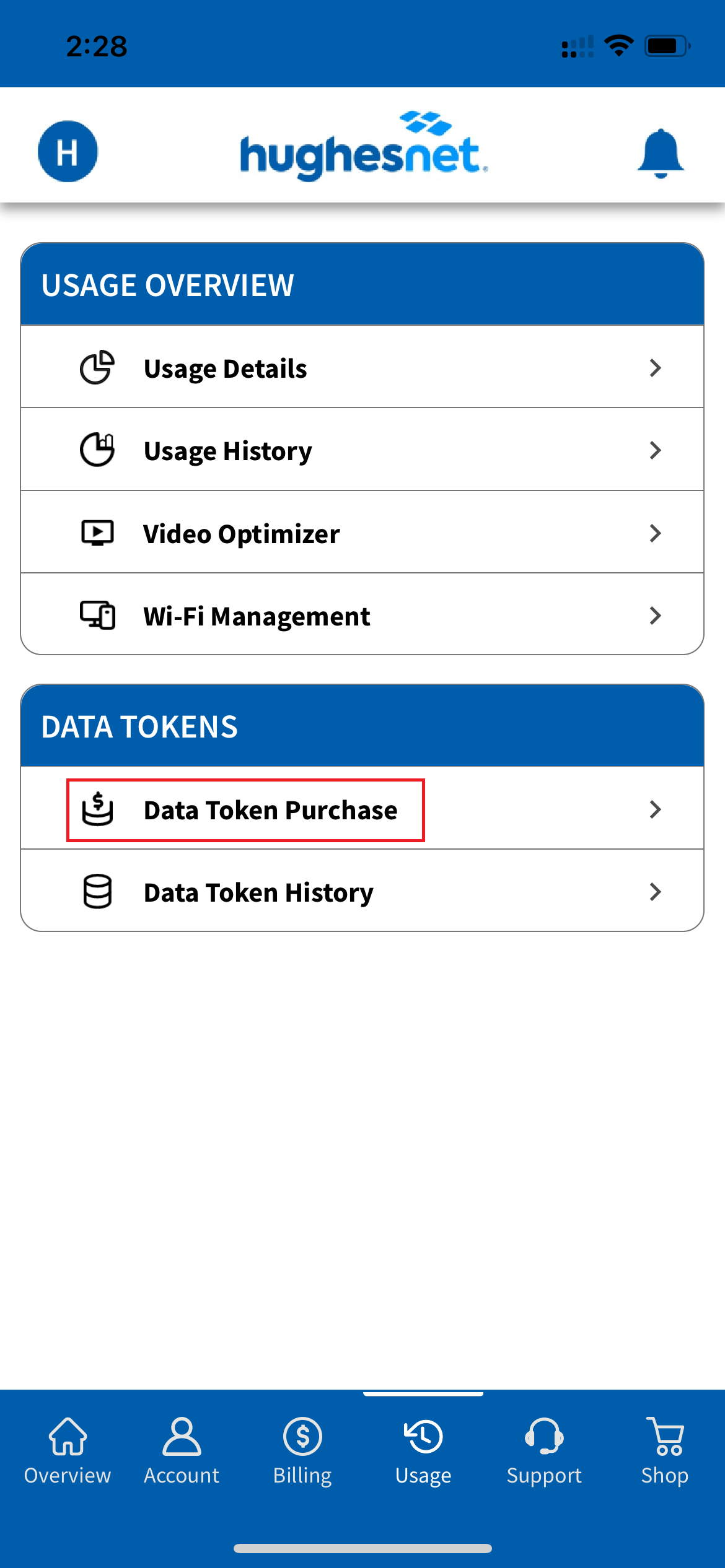
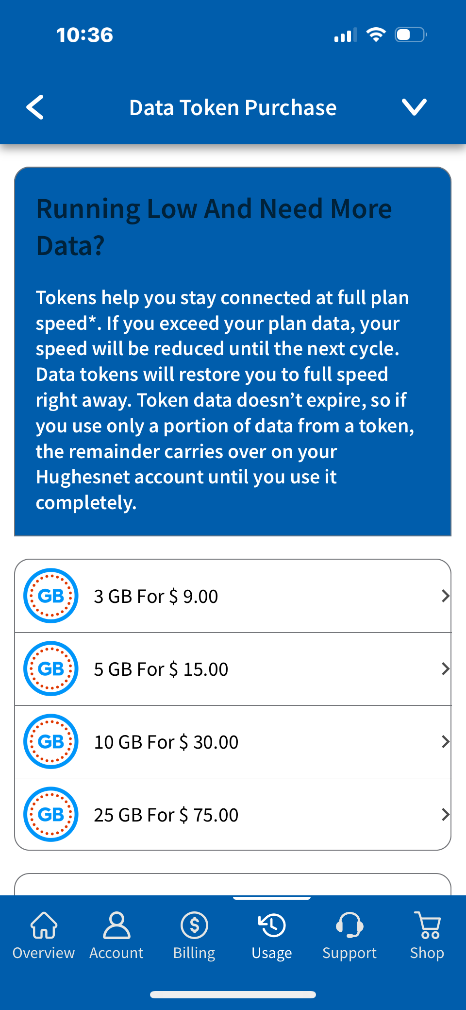
Download the myHughesnet (Mobile) App from your app store and enjoy easy account management at your fingertips. You can purchase Data Tokens from both the ‘Overview’ and ‘Usage’ screens.
From the ‘Overview’ screen, click on the ‘Buy Tokens’ button.
If you are on the ‘Usage’ screen, click on ‘Data Token Purchase’.
To ensure fair internet access for all Hughesnet® customers, Hughesnet maintains a special Fair Access Policy that establishes an equitable balance in internet access for all Hughesnet subscribers. Similar to how cell phone providers manage their data plans, all Hughesnet plans come with an allotment of data, that may be downloaded or uploaded within each monthly billing cycle. Subscribers who exceed this amount may experience slower speeds during high-traffic periods until their next billing cycle.
Here are some tips to optimize your data usage:
1. Enable Video Optimizer for optimized streaming experience up to HD quality.
2. Turn OFF devices when not in use
3. Schedule downloads/updates during Bonus Zone
For current Terms and Conditions and additional information, go to the Subscriber Agreement here.
If you have already registered on myhughesnet.com and have forgotten your Username and/or password, you can use the following FAQ article to gain access to your account. Note: If you have not previously registered, click here for instructions on how to register.
Click on the links below to navigate to the respective section of the article:
1. If you have forgotten your Username, you can click the Forgot Username link found on the ‘Sign In’ screen.
2. You will be required to enter your Site Account Number (SAN) and telephone number associated with your account before proceeding. If you do not know your SAN, you can find it on http://www.systemcontrolcenter.com (only when connected to your Hughesnet® internet), or on your monthly statement, or on your Order Confirmation email.
3. A list of Usernames associated with your account will display. Select the Username you want to login as and continue with the sign in process.
I forgot my Password
Step 1: If you have forgotten your Password, you can click the Forgot Password link found on the ‘Sign In’ screen.
Step 2: Depending on whether a ‘Recovery Mobile Number’ was provided at the time of creating the account, or when you login later, you have two options to reset your forgotten password.
Option 1: “Recovery Mobile Number” is previously setup
You will be presented with two options to reset your password like the image below:
If you click ‘Send code via SMS’, it will send a one-time pass code to your mobile number. You can then enter this code to set your new password.
When you click ‘Answer my Security Questions’, you will be able to see the security questions you setup previously, and submit the answers to those, before setting your new password.
Option 2: No “Recovery Mobile Number” provided
If the ‘Recovery Mobile Number’ is not previously setup, you will be prompted to enter your Username to reset your password. Check the ‘I’m not a robot’checkbox and then click ‘Continue’ at the bottom of the page.
2. You will be asked to answer your pre-set security questions. You must correctly answer all of the questions to proceed. Answers are case-sensitive.
3. If you have not set your security questions, please contact Customer Care at 866-347-3292 for further assistance.
4. When you have successfully answered the security questions, you will be prompted to set your new password.
Other Related FAQs:
For instructions on setting up a recovery mobile number, click here.