You can wirelessly connect as many devices as you want to. However, several devices connected to your internet simultaneously may result in degradation of speed. Hughesnet® offers a variety of service plans to accommodate your internet usage needs. Click here to help find the right plan for you or contact Customer Care at 866-347-3292.
Work and Study from Home with Hughesnet
Our exclusive Hughesnet Fusion® plans are great for working from home to provide you with a low-latency, reliable connection for time-sensitive applications, like video-conferencing.
When working and studying from home, it’s important to know which applications work with Hughesnet®, and how to get the most productivity from the applications that you use. Click here to see what works with Hughesnet.
Using VPN:
VPNs, where you sign into a VPN application to access your work or school network directly, will significantly reduce service speeds. Once the VPN is turned OFF, your speeds should return to normal. All plans are subject to the Hughesnet Subscriber Agreement.
Check the Number of Connected Devices:
When several devices in your home are connected to the internet, you may experience slower speeds. Even if some of the connected devices aren’t being used, they still may be processing updates or downloads in the background. Because of this, we recommend that you limit the number of devices on your network when attending virtual classes.
To view the devices connected to your network, login to your myhughesnet.com account and navigate to ‘Usage’ > ‘Wi-Fi Management’ to see the networks enabled, and a list of all the connected devices.
Other Tips
• For the fastest speeds, connect your Ethernet LAN cable to your computer directly instead of using the Wi-Fi.
• If you do use Wi-Fi, make sure you have a strong signal and limit interference. You can check your signal strength using the Wi-Fi gauge on the myHughesnet (Mobile) App.
• If you experience poor Wi-Fi signal quality in your home, you may benefit from the Hughesnet Wi-Fi Booster or Mesh Wi-Fi Node to enhance the signal.
What are Data Tokens and how do I check my data token balance?
What are Data Tokens?
Data Tokens are available in four different sizes to give you the additional data you need. Data Tokens do not expire and will remain available until they have been used.
Need more data?
Running low? Used it all up? Welcome to Data Tokens.
If you exceed your monthly plan data, you may experience reduced speeds, during high traffic periods, until the next billing cycle. Actual speeds may vary and are not guaranteed.
Data Tokens are available in four sizes.
| 3GB | 5GB | 10GB | 25GB |
How do Data Tokens work?
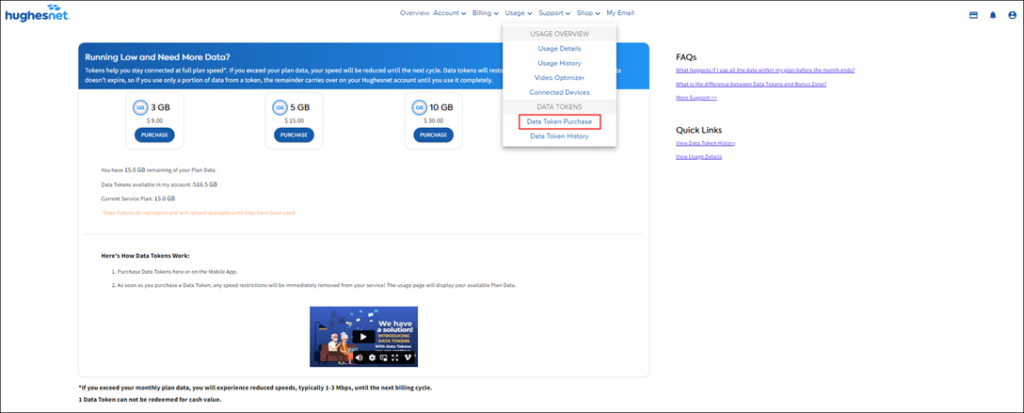
Purchase Data Tokens from your myhughesnet.com account or on the myHughesnet (Mobile) App. As soon as you purchase a Data Token, any speed restrictions will be immediately removed from your service!
How Many Data Tokens Do I Have Available?
Check your Service Plan Data and Data Tokens balance at any time on the “Usage“ page of your myhughesnet.com account. Alternatively, click here to go to the “Usage“ page.
*myhughesnet.com login required.
Change of Account Ownership Form
If you would like to request a change of account ownership, follow the steps below.
1. Download and complete the Change of Account Ownership Form:
2. The originating customer must fill in the required fields on the upper half of the form. The form must include transferor signature and date.
3. The account holder must accept their responsibility for the account by providing their name, signature, and date.
4. Franchise/ Enterprise customers can e-mail completed forms to changeowner@hughes.com. SME Business customers can e-mail completed forms to smechangeowner@hughes.net.
Note: The account must be in good standing and any outstanding balance must be paid prior to changing ownership.
Where Can I Find the Setting Up TP-Link TL-470T+ User Guide?
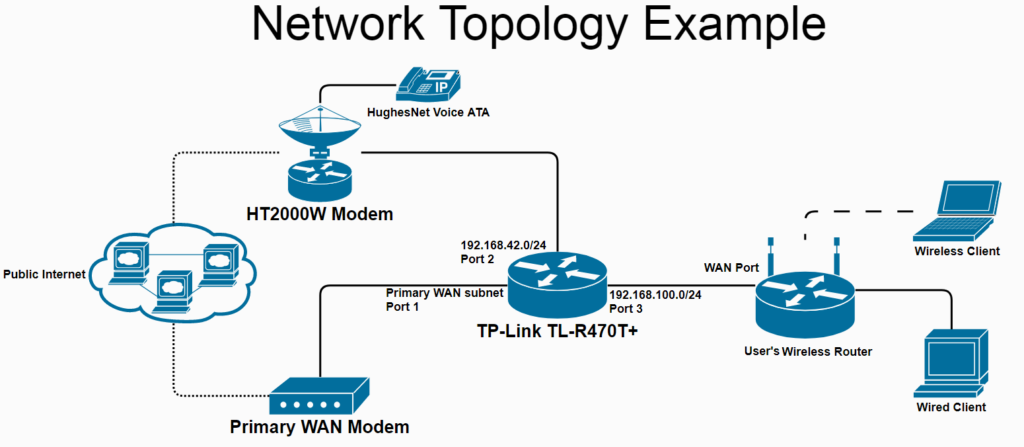
Hughesnet® Business Internet Continuity Customers should click here for the Set-Up instruction guide for TP-Link TL-470T+ for Failover Load Balancing with DSL and VSAT Connections
Welcome to Hughesnet
Recommended for you:
- Getting the most out of your Hughesnet service
- Understanding how your data is used
- Understanding the Bonus Zone included with all Hughesnet plans
- Learn about data tokens
- Information on products and devices that have been tested with Hughesnet
- Understanding your bill
Review the HughesNet Install Guide
This quick start guide provides general information for your HT2000W/HT2010W satellite modem.
How do I Connect my Innomedia Analog Telephone Adapter (ATA) to my Hughesnet Modem?
What you will need:
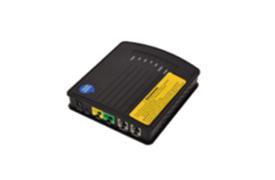
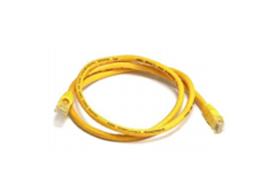
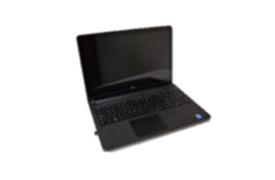
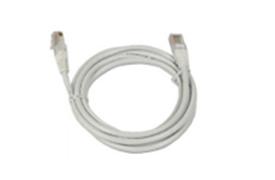
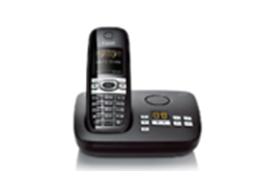
(not provided)
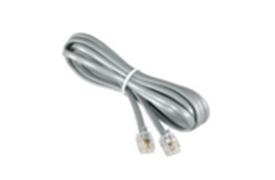
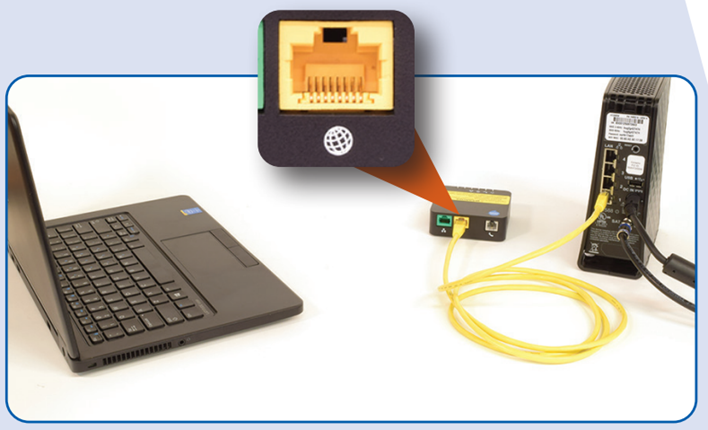
Step 1: Connect ATA to existing Hughesnet modem
Step 2: Connect your telephone cable to the phone port on the ATA
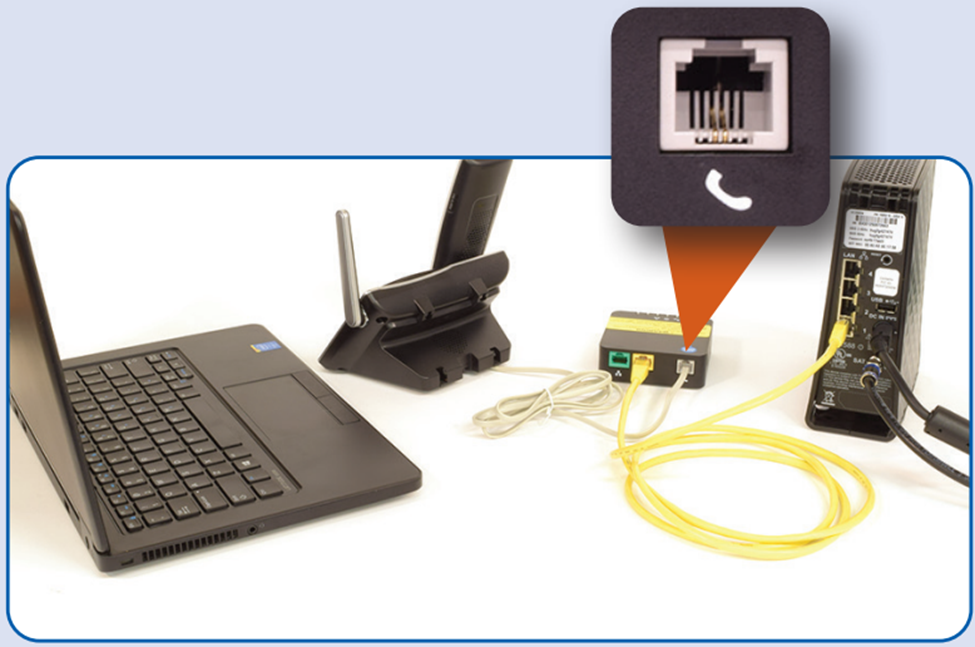
Step 3: Plug in the power cable to the ATA. Please review your connections below:
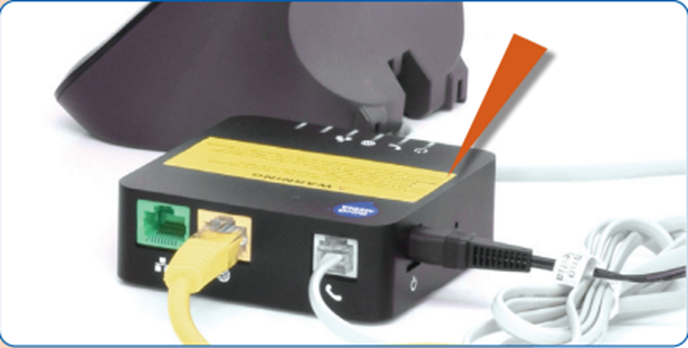
Step 4: Review connections – your configuration will vary based on your home computing device (laptop, desktop, mobile)
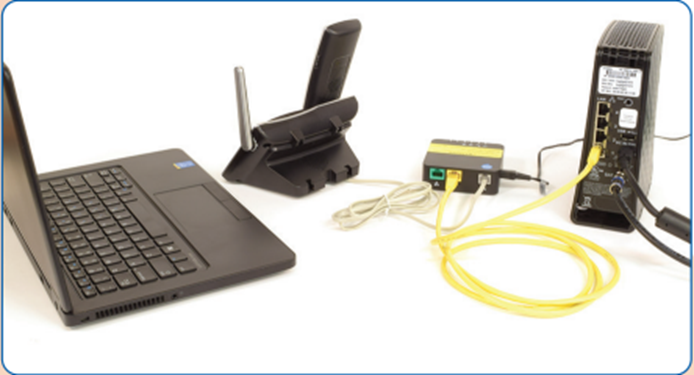
Make sure the power LED and the globe LED turn green, before proceeding to activate your Hughesnet Voice service.
Click here to access the quick start guide
How do I return my Hughesnet leased equipment?
For instructions on how to uninstall and return your Hughesnet® leased equipment, click here.
If you would like to reactivate your service, or have any questions regarding returning the leased equipment, call Customer Care at 866-347-3292.
HT1000 and HT1100 model modems are not required to be returned. Please recycle with your local facility.
Who do I contact to check the status of my order?
Visit orderstatus.hughesnet.com or call Pre-installation Support at 866-774-6580. If your installation is already complete, please reach out to our Customer Care team at 866-347-3292.
How can I view my data usage?
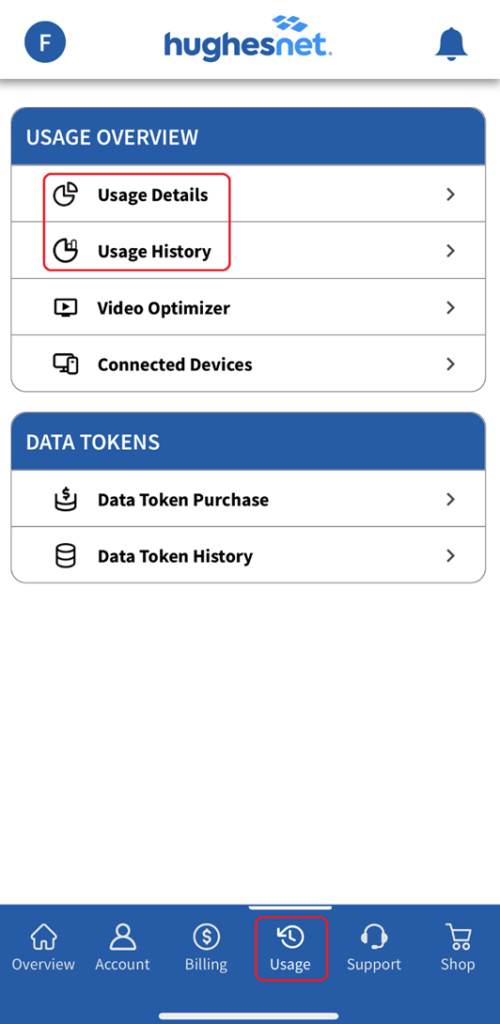
You can view your current data usage or usage history over time through the myHughesnet (Mobile) App or on myhughesnet.com.
On myhughesnet.com:
- Register or Sign In to your Hughesnet® account.
- Select ‘Usage’ at the top of the page.
- Select ‘Usage Details’ or ‘Usage history’ for an overview of your account.

On Hughesnet Mobile App:
- Click on the ‘Usage’ menu item at the bottom of the screen to see ‘Usage Details’ and ‘Usage History’.
- Click on the page to view the respective information.