If you have a Hughesnet® Wi-Fi modem, you’ll find your wireless (Wi-Fi) password printed on the sticker on the back of the device.
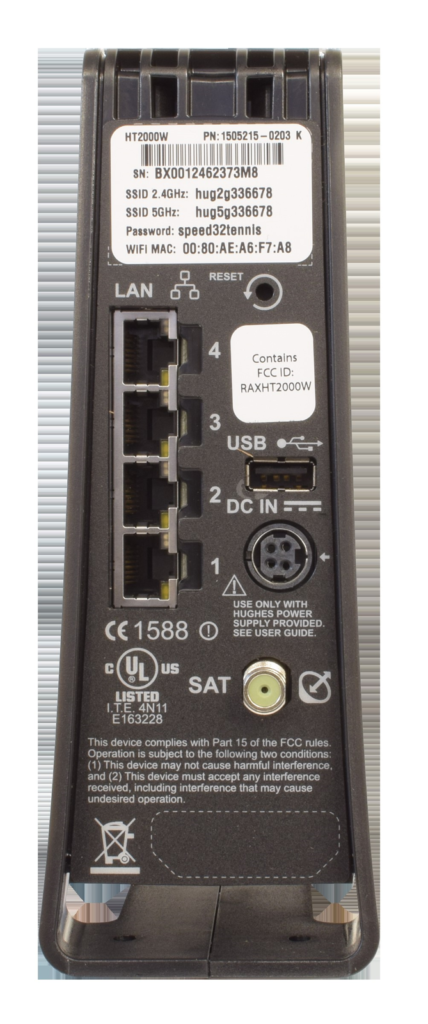
If you have a Hughesnet® Wi-Fi modem, you’ll find your wireless (Wi-Fi) password printed on the sticker on the back of the device.
Note: The Multipath device does not have a power (off-on) switch.

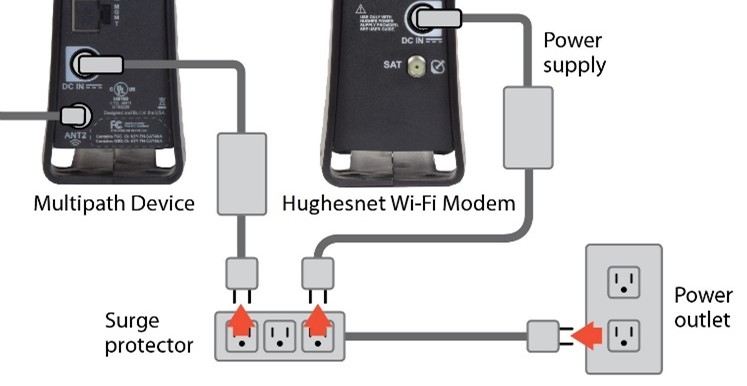
Figure 1: Unplug from wall
2. Disconnect the remaining cables as shown in Figure 2 below.
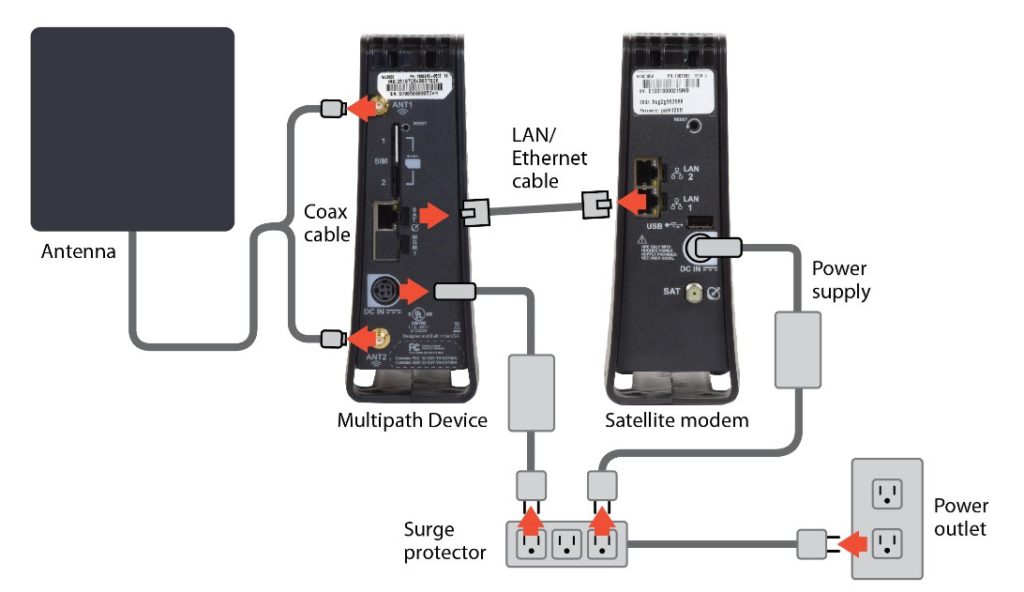
Figure 2: Disconnecting cables from the old device
Note: To unplug the power adapter from the back of the device, grip the locking mechanism (Figure 3) and pull. The locking mechanism will disengage, and you will be able to remove the power adapter.
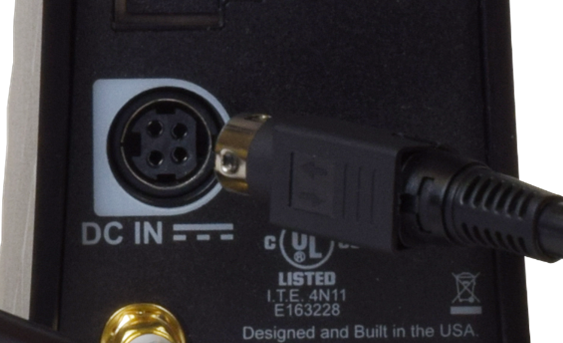
Figure 3: Locking mechanism
Your Multipath device is now disconnected from your Hughesnet Wi-Fi Modem.
Wi-Fi Management allows you to see information related to your Wi-Fi and devices connected to it from the myHughesnet (Mobile) app or my.hughesnet.com. You will be able to edit your router settings, reset your router remotely, see connected devices, and view wireless status. You will also be able to see device usage in the last 24 hours. To access this from my.hughesnet.com, navigate to Support and select “Wi-Fi Management” from the dropdown menu.
On the Mobile App, you can access this by navigating to the Usage tab and selecting Wi-Fi Management.
Network Details Tab
The mapping under Network Details will showcase the network connection from the Internet to the modem.
By clicking on your modem, you will be able to modify modem Information, view, and manage your connected devices.
Devices listed below are the devices connected to your modem.
Network Settings & Access
Under Network Settings & Access, you will be able to perform the following actions:
Stay informed with notifications about your bill, usage, service updates, special offers, and the latest product launches. Customize your Hughesnet® email and SMS text notification preferences by logging into your myhughesnet.com account or through the myHughesnet (Mobile) app.
Managing notification preferences on myhughesnet.com
1. Register or Sign in to your myhughesnet.com account
2. Navigate to ‘Account’ > ‘Notification Settings’
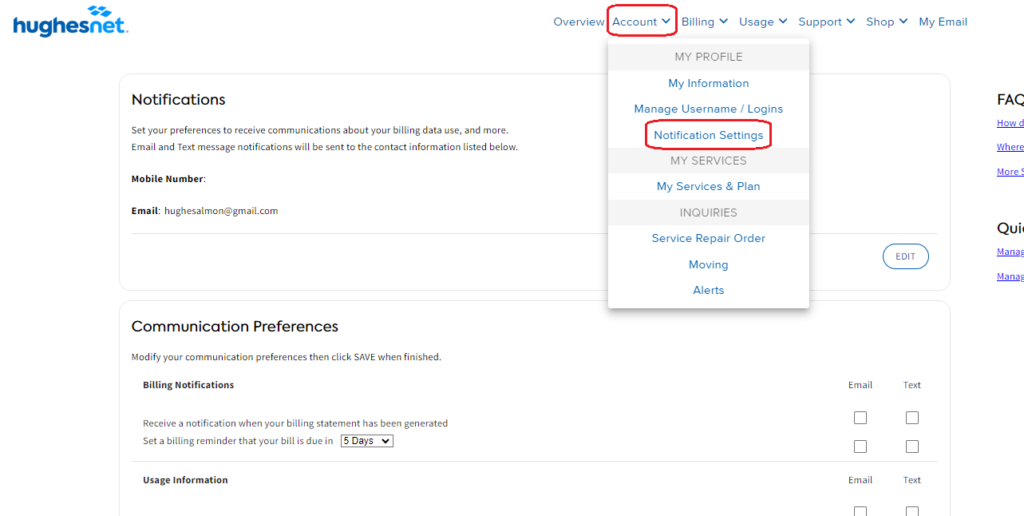
3. Check or uncheck the boxes depending on the notifications you want to receive on the Email and Mobile Number shown on the top of the page.
4. Click ‘Save’ to submit the changes.
Managing notification preferences on myHughesnet (Mobile) App
1. Login to your myHughesnet (Mobile) app.
2. Click on ‘Account’ from the bottom menu and then click on ‘Notification Settings’
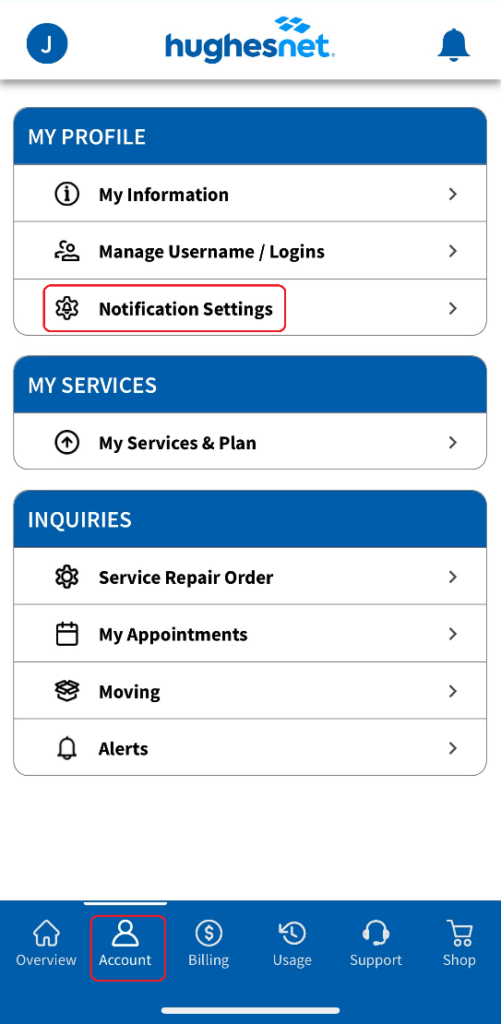
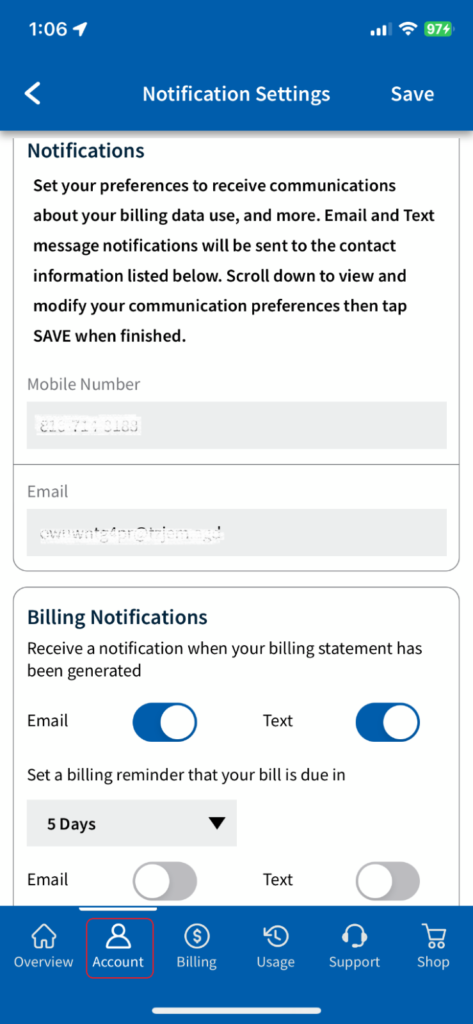
3. Enable or disable ‘Email’ and ‘Text’ notifications for each notification type and click ‘Save’ to confirm the changes.
Where will I receive my notifications?
Note that the Email address and the Mobile Number associated to your account is where you will receive Email and SMS text notifications respectively, if you elect to receive these notifications from Hughesnet.
Can I respond to notifications?
Unfortunately, we are unable to respond to your service or account related questions via SMS text or email. If you need assistance, contact Customer Care at 866-347-3292.
How frequent are the notifications?
The number of Hughesnet email and text messages you receive will vary depending on how many Hughesnet notifications you have signed up for. For example, your billing statement generation occurs once per month, but usage notifications are only sent if you approach your plan data limit and have elected to receive this notification. Regardless of your selections, you will always receive important account-related and transactional notifications such as service plan change confirmations.
Who is eligible?
All active Hughesnet customers are eligible to subscribe to email and/or text notifications. Standard message and data rates apply for SMS text messages. Texts can only be sent to US and PR mobile numbers. Business customers may not see all categories or may need to call customer care for notification assistance.
How do I opt out or unsubscribe to text alerts?
To stop text messages, text the word OUT to 75720. You will then receive confirmation of your opt-out status from that text messaging program. The confirmation message you receive will be similar to the following: “You have unsubscribed from all Hughesnet Alert categories. Update your preferences any time at hninfo.us/comms. For HELP visit hninfo.us/sms.”
Customers who unsubscribe can re-subscribe into email or SMS text alerts at any time via the Notifications page on myhughesnet.com, myHughesnet (Mobile) App, or by speaking with a Customer Care Representative.
How do I unsubscribe from email communications?
You can update your notification preferences from the Notifications page found on myhughesnet.com under My Account. Or you can unsubscribe by clicking the link at the bottom of an email you received from Hughesnet. Account-related emails, such as those sent after you have made a change to your account, do not include an unsubscribe link.
Privacy Policy & Terms and Conditions
View the SMS Terms and Conditions, and Hughesnet Privacy Policy here.
Priority Data Tokens are available in different sizes to give you the additional data you need. Priority Data Tokens do not expire and will remain available until they have been used.
The Video Optimizer helps you get the most out of your service when streaming video content.
Hughesnet® automatically adjusts data rates for streaming video to deliver great picture quality while using less of your data. Streaming is optimized with video streams up to HD quality. For best performance, leave any video streaming applications at their default automatic resolution setting. Most video services are supported. Not all video sources are identifiable.
Yes! Your service is automatically set to stream videos up to HD quality. You can choose to temporarily disable the feature for up to 4 hours using the Snooze button. It’s easy to manage your video optimizer settings using the myHughesnet (Mobile) App or on myhughesnet.com.
Manage Video Optimizer on the myHughesnet (Mobile) App
Manage Video Optimizer on myhughesnet.com
Streaming providers may use progressive or adaptive video streaming. The format in which they deliver video can affect your streaming experience. Click here learn more about Adaptive and Progressive video Streaming.
Ensuring your Multipath (WL3000) and Modem are properly connected, helps you to enjoy more responsive internet experience. Please follow the steps below to ensure the connections are accurate:


If all the lights on the Multipath (WL3000) are still not ON, please follow the steps below:
Even after following all the above steps, if the lights on the Multipath (WL3000) are still not ON, it’s time to call Customer Support at 866-347-3292 for further assistance.
Note: Always ensure safety when checking and handling equipment. If you’re unsure about any step, it’s best to call Customer Support right away.
Alerts are specific to you and contain important information about your account.
When logged into your account on myhughesnet.com, the number of unread alerts appear next to the bell icon in the upper right corner of each page.

On the Mobile App, the number of unread alerts appear next to the bell icon in the upper right corner of each screen.
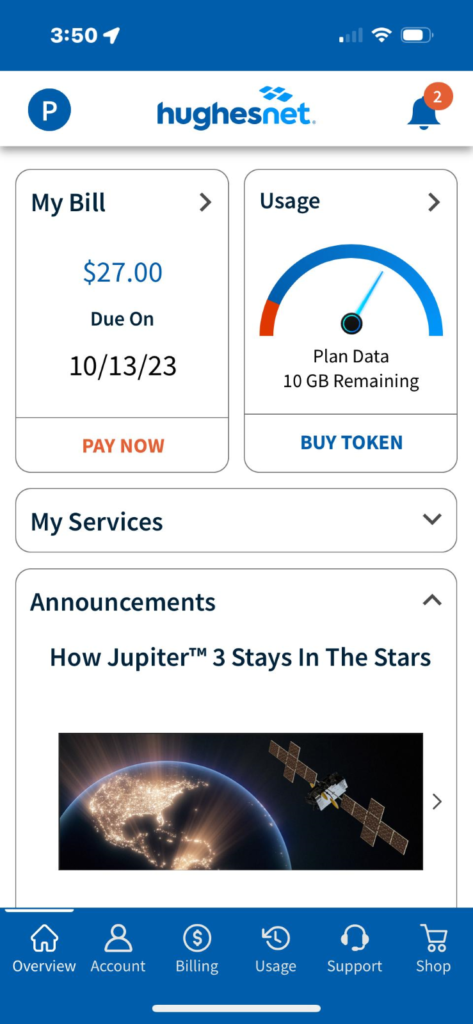
From either myhughesnet.com or the myHughesnet (Mobile) App, clicking on the bell icon will take you to an alerts page where you can review an alert, delete an alert, or mark an alert as unread. Clicking on the alert will automatically mark it as read and remove it from the count of unread alerts next to the bell icon. If you choose to mark the alert as unread, it will continue to be counted as an unread alert next to the bell icon. From the Mobile App, you can also access alerts by clicking on the Account icon at the bottom of each screen and then selecting the Alerts option.
Para garantizar su seguridad y la de los suyos, por favor considere lo siguiente.
¿Cómo debería colocar mi módem?
Las siguientes recomendaciones le ayudarán a obtener una operación óptima de su Módem Hughes.
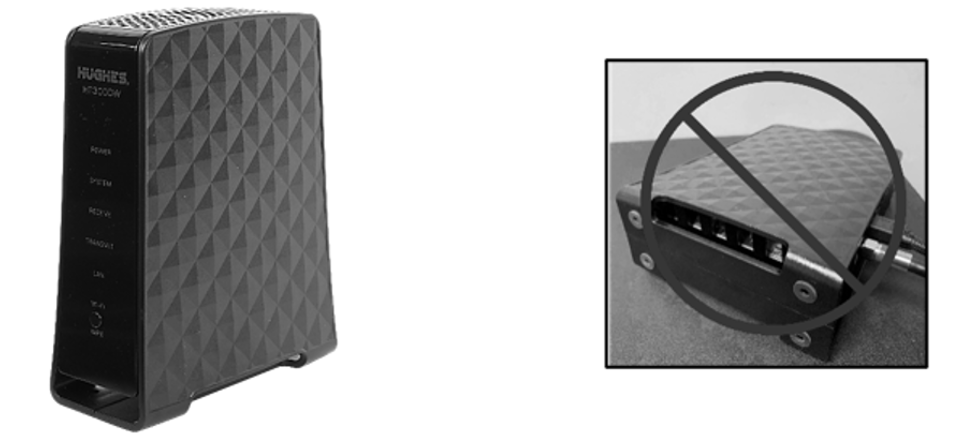
Imagen 1: Posición correcta del módem Imagen 2: Posición incorrecta del módem
¿Dónde NO debería colocar mi módem?
Su módem no debe ser colocado en gabinetes o locaciones cerradas. Adicionalmente, no debe haber nada a una distancia menor de 30 centimetros hacia los lados y por encima del módem, ya que puede restringir el flujo de aire.
Esto no solo previene sobrecalentamiento del módem cuando está en uso, sino que además proveerá de una mejor señal para sus equipos.
¿Cómo conecto correctamente el módem?
Para ayuda sobre cómo instalar correctamente su módem, por favor consulte esta guía de instalación del módem.
¿Su módem se sobrecalienta?
Usted puede identificar si su módem se está sobrecalentando si la luz LED de “Power” cambia a color ROJO. Para resolver este problema, por favor siga las instrucciones:
Paso 1: Aleje cualquier otro equipo o artículo cercano, a más 30 centimetros del módem.
Paso 2: Si el módem aún se sobrecalienta, desconecte la fuente de corriente eléctrica del módem desde la pared y revise el conector ubicado detrás del módem. Asegúrese de que las conexiones estén firmes, y que el mecanismo de seguro del conector esté puesto.
Paso 3: Espere 3 minutos antes de conectar el módem a la fuente de corriente eléctrica.
Si el problema persiste, llame a Atención a Clientes HughesNet (800) 953-0237
¿Qué debo hacer si detecto humo o algún olor a quemado dentro de mi módem?
En caso de detectar humo saliendo del módem, inmediatamente desconéctelo desde la pared y llame a Atención a Clientes HughesNet (800) 953-0237
Si el humo u olor a quemado no están al interior del módem:
Paso 1: Desconecte el módem.
Paso 2: Revise el área alrededor para detectar si hay objetos a menos de 30 centimetros del módem. Si es así, revise si alguno de esos objetos pudo causar el humo.
Paso 3: Una vez alejados todos los objetos, espere un par de minutos para que el módem se enfríe y reconecte la fuente de corriente eléctrica de la pared.
Paso 4: Si el módem no tiene olor a humo o quemado, remueva todos los objetos cercanos a menos de 30 centimetros del módem y manténgalos alejados del módem a futuro.
Paso 5: Si el olor a humo o quemado persiste en su módem, inmediatamente desconecte de la fuente de energía eléctrica y llame a Atención a Clientes HughesNet (800) 953-0237
¿Qué debo hacer si veo chispas saliendo del módem?
Si las chispas provienen del interior del módem, inmediatamente desconecte el módem desde la pared, aleje cualquier material u objeto del área, y llame a Atención a Clientes HughesNet (800) 953-0237
Si las chispas no provienen del interior del módem:
Revise si el cable de la fuente de energía eléctrica está colocado correctamente en la parte posterior del módem:
Si sí:
¿Detecta algún problema con las coberturas del cable de energía eléctrica o del cable coaxial? Si es así, inmediatamente desconecte de la corriente eléctrica desde la pared y llame a Atención a Clientes HughesNet (800) 953-0237
Si no:
Paso 1: Inmediatamente desconecte el módem de la fuente de energía eléctrica desde la pared
Paso 2: Por favor desconecte el cable de la fuente de energía eléctrica del modem y reinsértelo, asegurándose de que esté colocado y asegurado correctamente a la parte trasera del módem.
Paso 3: Conecte de nuevo el módem a la fuente de energía eléctrica
Si ya no hay chispas, monitoree el módem y en caso de que ya no se presenten, continúe usando el módem, conectándolo de forma correcta.
Si las chispas permanecen, inmediatamente desconecte la fuente de energía eléctrica desde la pared, despeje el área de cualquier material y objeto, y llame a Atención a Clientes HughesNet (800) 953-0237
Si necesita desconectar la fuente de energía del módem, desconecte desde la pared, no desde la parte posterior del módem.
¿Qué debería hacer si veo fuego saliendo del interior de mi módem?
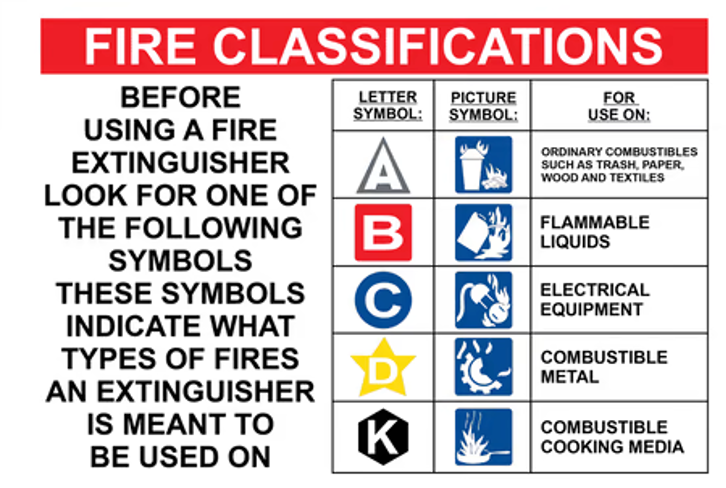
Use un extinguidor de fuego “Clase C” indicado para fuego causado por electricidad.
Después de extinguir el fuego, desconecte inmediatamente de la fuente de energía eléctrica desde la pared y llame a Atención a Clientes HughesNet (800) 953-0237
Si el fuego no proviene del interior del módem:
Paso 1: Extinga el fuego usando un extinguidor “Clase C” indicado para fuego causado por electricidad
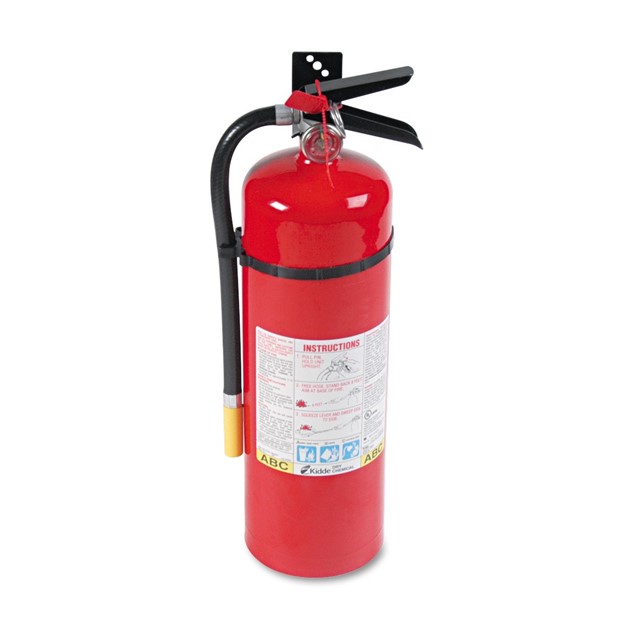
Si el módem ya no tiene aroma a humo o quemado, remueva todos los objetos a menos de 30 centimetros del módem y manténgalos alejados del módem en el futuro.
Si el módem aún tiene aroma a humo o quemado, inmediatamente desconecte de la fuente de energía eléctrica y llame a Atención a Clientes HughesNet (800) 953-0237
A “Recovery Mobile Number” is a great way to access your myhughesnet.com account should you forget your password. Once setup, you can request a one-time code to be sent to the number to setup a new password for your account.
For instructions on how to reset your password using your recovery mobile number, click here.
You can setup a “Recovery Mobile Number” when you are newly registering on myHughesnet.com. For instructions on how to register on myHughesnet.com, click here.
If you have not previously setup a “Recovery Mobile Number”, or would like to update it, follow the instructions below:
Step 1: Login to your myhughesnet.com account.
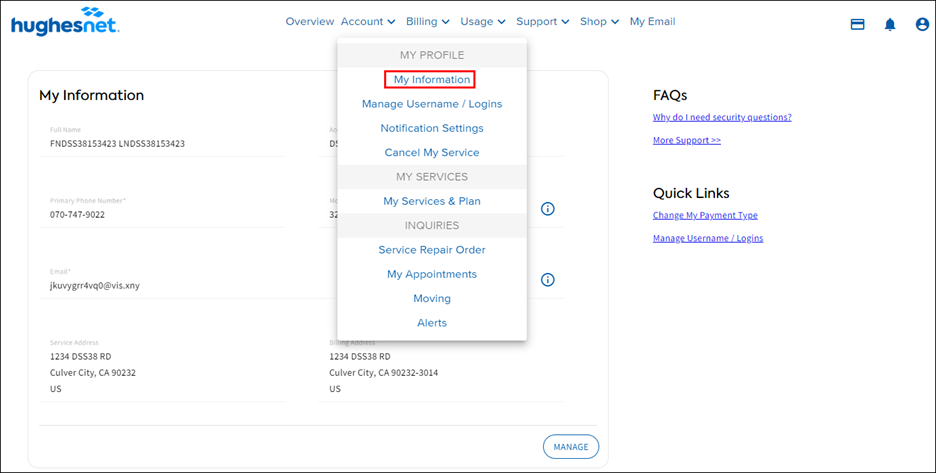
Step 2: On “Account” tab, click on “My Information” like in the image below
Step 3: On the “My Information” page, scroll down to find “Security & Password” section and click “Manage”.
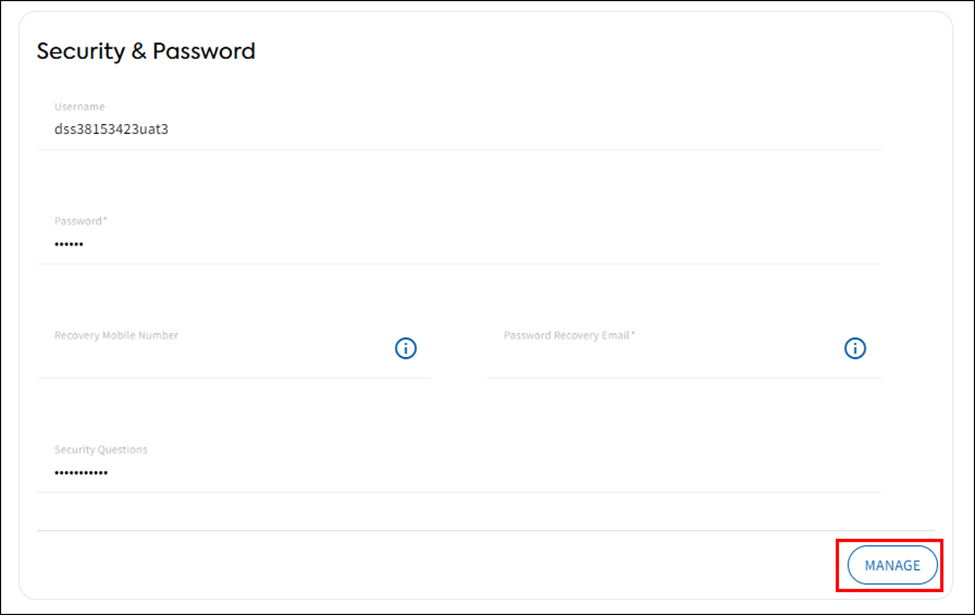
Step 4: Add the phone number in the “Recovery Mobile Number” field and click “Save” to update your number.