Everything to know about transferring your current phone number to Hughesnet Voice

The process of transferring your telephone number from one Voice service provider to another, is called Phone Number Porting.

Most new Hughesnet® Voice customers can bring their current telephone number when switching to Hughesnet. The following FAQ article highlights key details including any instructions that must be followed to submit a port request.

Important things to remember:

Not all phone numbers can be ported.

While we always do our best to process every number porting request, please be aware that there may be some factors beyond our control that could prevent us from successfully porting your number. You can check if a number can be ported in the following two ways:

1. myhughesnet.com:

Step 1: Register or Sign in to your account and visit ‘Account’ > ‘Voice’ > ‘Manage’ for the Voice service you want to request the porting.

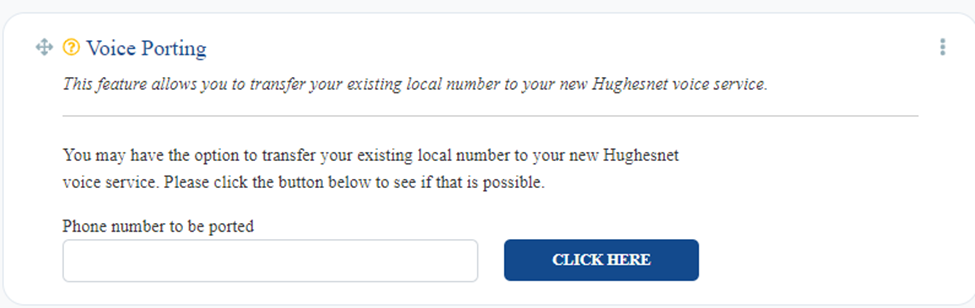
Step 2: Enter the Phone number you want to port, into the ‘Voice Porting’ widget on the ‘Voice Dashboard’.
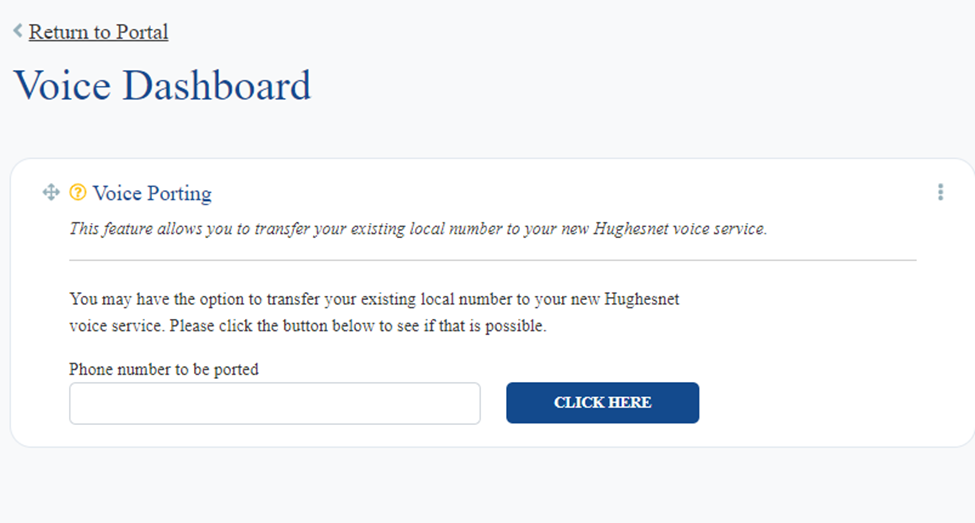
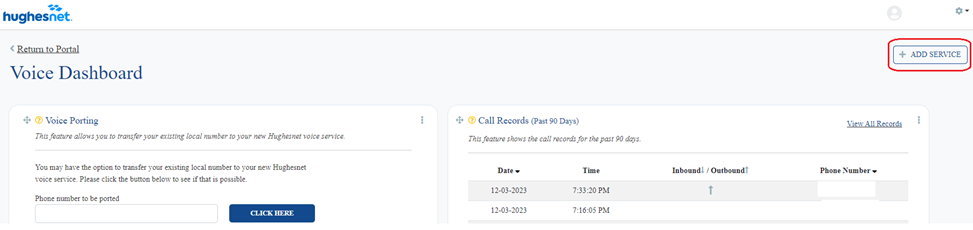
Note: If you can’t find the ‘Voice Porting’ widget on the dashboard, you can add it by clicking the ‘ADD SERVICE’ button on the top right corner as shown below:
Step 3: If the number is eligible for porting, you will be directed to the port request page, where you can initiate the porting process.

2. Call Hughesnet Customer care at 866-347-3292

Only you can do it!

As per the FCC mandate, only you can submit a request to port your number. Although we can help you in submitting the information, it is only you, who can submit the request.

Activate your Hughesnet Voice service first to get a temporary phone number during the porting process.

For you to submit a port request, you will have to activate your Hughesnet Voice service first. On activation, you will be given a temporary phone number which will be replaced by your old phone number once the porting process is completed successfully.

Do not cancel Voice service with your previous carrier until the number porting process is completed.

If you cancel service with your old provider before the port request has completed, your previous telephone provider may recycle that telephone number and you could lose the ability to keep your number. Wait until you have received confirmation that your port request has finished before you terminate service with your current carrier.

Other things to note:

Can take up to 10 business days to complete.

Although we make every effort to complete the porting process early, there are many external factors that could make the process take up to 10 business days.

Keep checking your email for updates.

Be it updating you about the status or to seek more information during the porting process, we will be sending you emails with important information that might require your immediate attention.

How to submit a Port Request

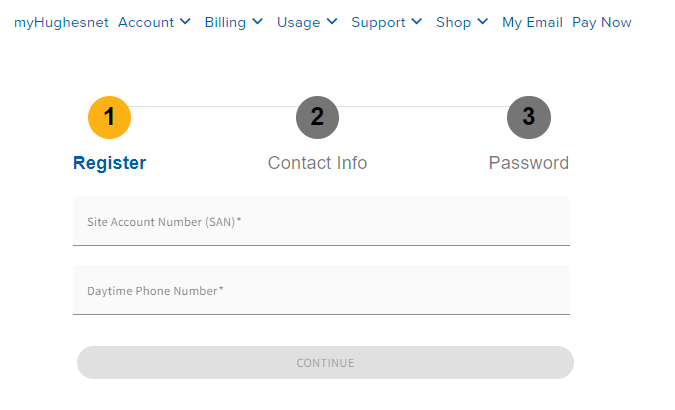
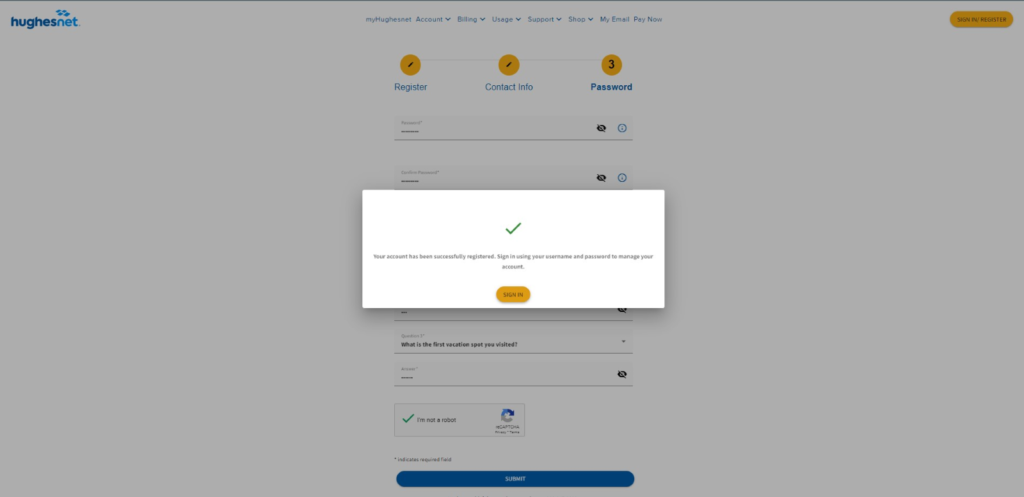
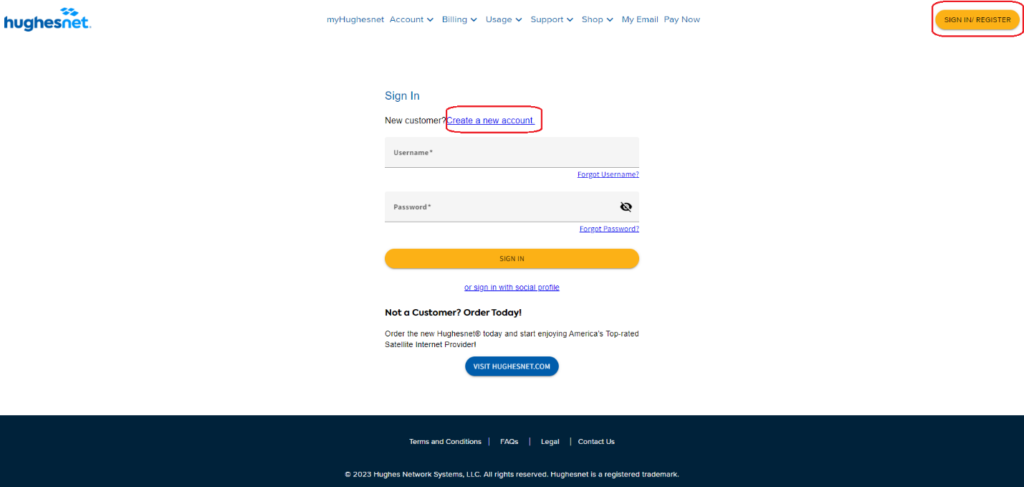
Step 1: Register or Sign in to your account on myhughesnet.com

Step 2: Navigate to ‘Account’, then ‘Voice’, and finally ‘Manage’ to access and manage your Voice features. This includes setting up Voicemail, call forwarding, and more.
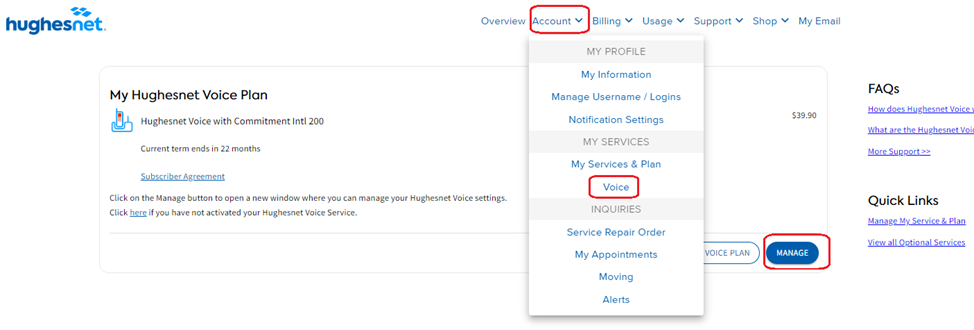
Step 3: On the ‘Voice Dashboard’, check if your number can be ported. If the number can be ported, you will be shown the ‘Voice Porting’ page.
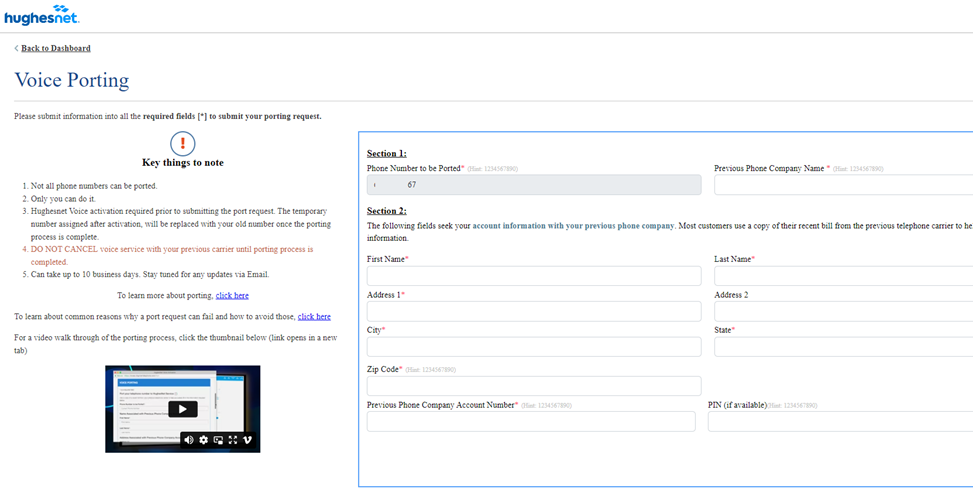
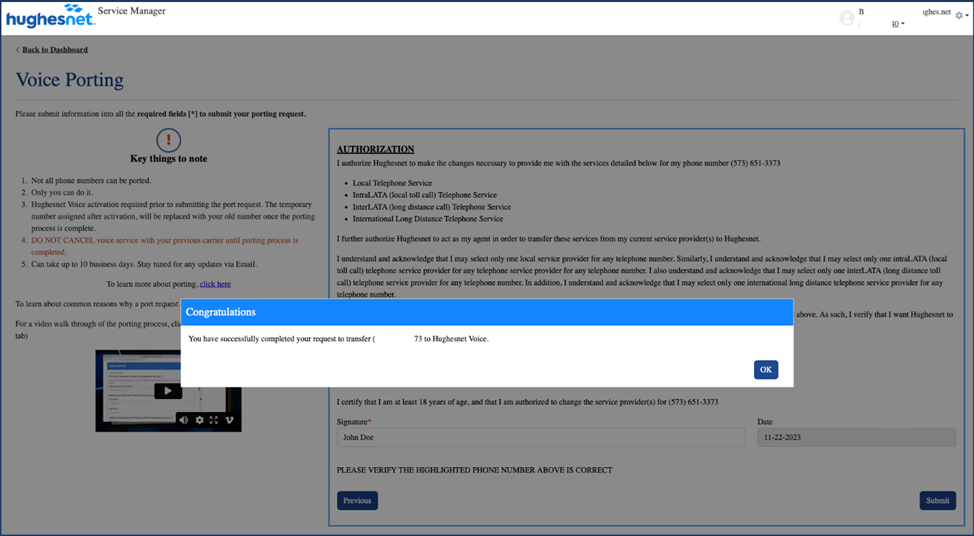
Step 4: Submit the form with all the required information. We highly recommend checking the ‘Key things to note’ section to avoid common errors when submitting the form which can expedite the processing of your port request.

Step 5: Complete the authorization form to submit the port request. You will receive a confirmation that that the port request is submitted successfully.
What happens to call when the number transfer is still in process?

While we process your port request, you’ll keep receiving calls on your temporary Hughesnet phone number. Once the process is successfully completed, your temporary number will be replaced by your original phone number (the one you want to port to Hughesnet), and all calls will be directed to this ported number.

What happens if something goes wrong with my phone number transfer request?

In case your request fails, you will receive an email containing instructions explaining why the port request failed. You will then need to resubmit the form. Please note that a valid email address is required for communication, and the process may take up to 10 business days from form submission.

Check out our other related FAQs below:

For information on activating your Hughesnet Voice service, click here

For information on Hughesnet voice features, click here

For information on how Hughesnet Voice works, click here
New! Hughesnet Fusion Plans

Say hello to new Hughesnet® Fusion® plans, the latest innovation in satellite internet. 

Now available in select areas* 

Hughesnet Fusion plans use innovative multipath technology, that automatically selects the best path for your internet activities — satellite or wireless — in real time, to reduce delays and deliver a faster, more reliable experience. You can stream video and enjoy smooth video-conferencing, with less buffering. And you can enjoy online gaming with a low-latency connection that won’t spoil the fun. 

Responsive 

Videos load faster with less buffering. 

Reliable 

Multipath technology uses the best connection available for your current activity. 

Easy 

It’s easy to upgrade to a Hughesnet Fusion plan. Login to your myhughesnet.com account or check the myHughesnet (Mobile) app to see if the Hughesnet Fusion plans are available in your area. Alternatively, you can also call Customer Care today at 866-347-3292 

What customers are saying: 

“Happy Happy Happy Happy Happy 🥰.” 

-D.W., Florida 

‌”Basically I can say it’s a great move.” 

-P.N., Alabama 

Visit legal.hughesnet.com for information on commitment changes when switching to a Hughesnet Fusion plan. 

How do I connect and activate Hughesnet Fusion?


  • Unpack the box 
    Your shipment includes a Multipath Device, Wireless Antenna, and the necessary cables to connect to your existing Hughesnet® equipment.
  • Complete the connections 
    Follow the detailed instructions to connect the new Multipath Device and wireless antenna to your existing Hughesnet Wi-Fi Modem.  
  • Activate 
    Go to fusion.hughesnet.com to complete the system activation.

Having trouble? Are you having trouble connecting the devices or with the system activation? 
Contact Customer Care at 866-347-3292. 

How do I transfer my Hughes.net email to Gmail?

Follow these steps to create or use a Gmail account, move your Hughes.net messages, and update your email address before November 16, 2026. 

Important deadline

Complete the email move and update your address with important contacts before November 16, 2026.

Use a desktop or laptop

These steps are easiest on a computer. Keep this page open in a separate browser tab while you work.

Before you start

Have these ready

Your full Hughes.net email address, your Hughes.net password, and the Gmail account that will receive your messages.

  • Make sure you can sign in to your Hughes.net mailbox.
  • Your emails may take several hours, or up to 2 days for larger mailboxes, to appear in Gmail.
  • Keep both accounts available until you confirm the messages you need are in Gmail.
  • Do not delete messages from Hughes.net until you finish checking the move.

Drafts and Deleted items need extra attention

Drafts and Deleted items do not move through this process. Send or save anything important from those folders before November 16, 2026.

1. Create a Gmail account, if needed

Already have a Gmail account you want to use? Skip to “Move your Hughes.net email.”

Open the Google account sign-up page

Use a desktop or laptop. 

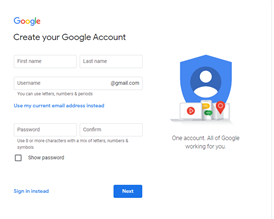
Create a Google account 

Create your account 

Enter your name, choose a Gmail address, and create a password. Write down your new Gmail address in a safe place. 

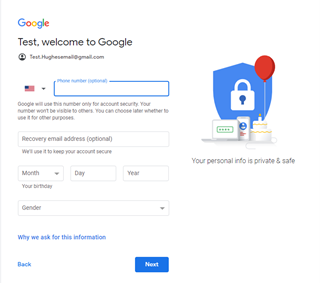
Add recovery information

A phone number and recovery email can help you recover the account later.

Finish and sign in

Review the terms, select I agree, and sign in to Gmail. 

Open Gmail 

2. Move your Hughes.net email

Complete these steps while signed in to the Gmail account that will receive your Hughes.net messages.

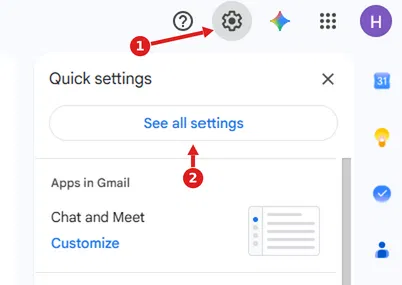
Open Gmail settings 

Select the Settings gear in the upper-right corner, then select See all settings or Settings.

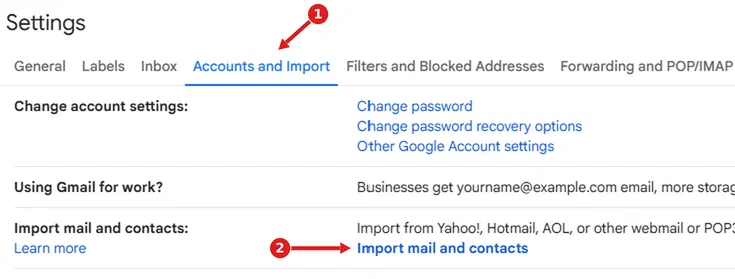
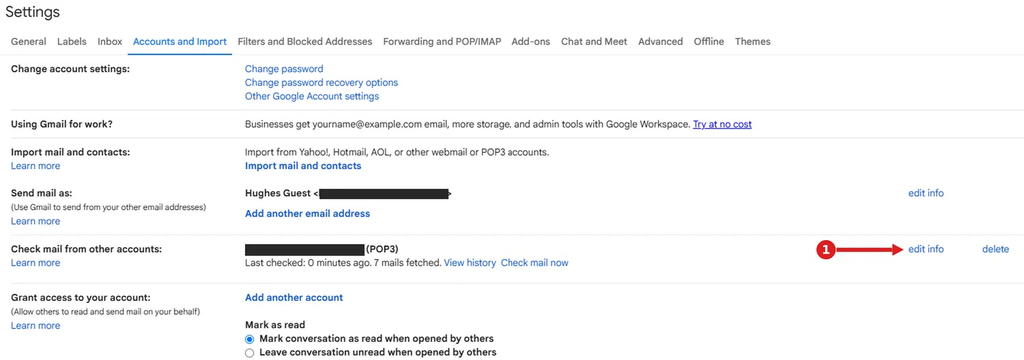
Open Accounts and Import 

At the top of the Settings page, select Accounts and Import.

Start the import

Under Import mail and contacts, select Import mail and contacts. If you see Check mail from other accounts instead, select Add a mail account.

Enter your Hughes.net information 

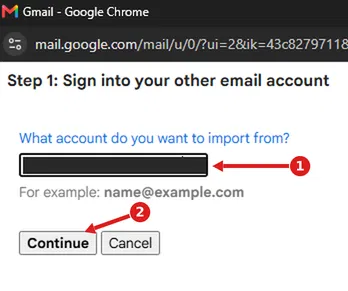
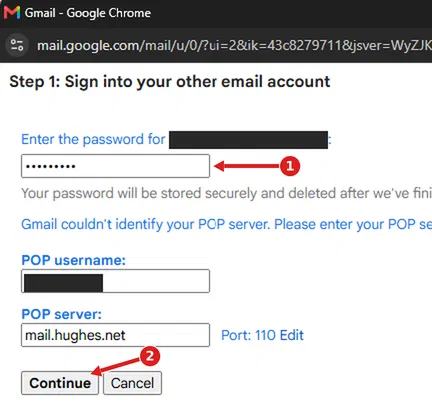
Enter your full Hughes.net email address and select Continue. Then enter your Hughes.net password. Confirm the address and username are yours.

Password not accepted? 

First confirm you can sign in directly to Hughes.net. Then carefully re-enter the same address and password. Check Caps Lock. Never share your password. 

Choose what to import

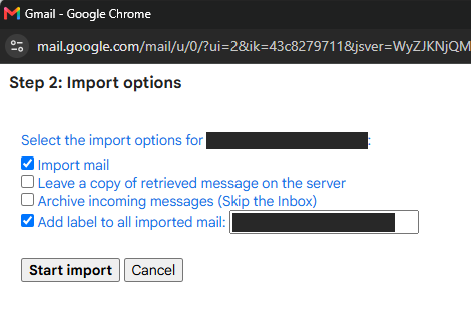
Select Import mail and Add label to all imported mail. Leave the other options unchecked and select “Start import”.

Start the import

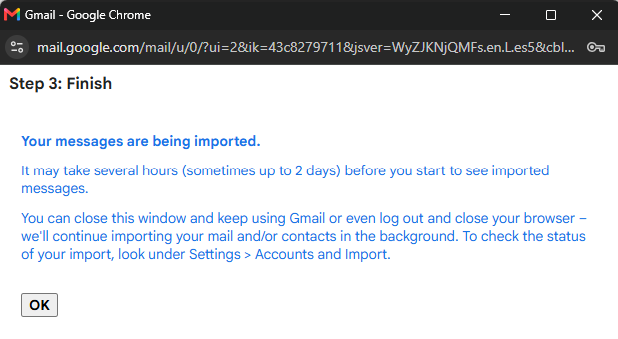
Select Start import, then OK. You can continue using Gmail while the import runs. 

Seeing this error?

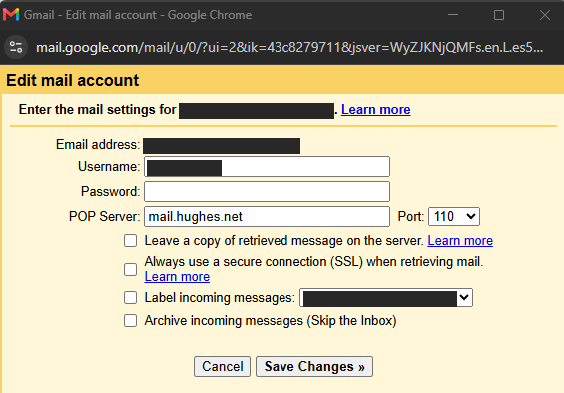
If Gmail shows “POP Server cannot be verified. Please confirm your POP Server. There is a problem connecting to mail.hughes.net” follow steps 7 and 8 below to update your settings. If not, proceed to the next section.

Check the import status

Return to Settings, then Accounts and Import. Look under Import mail and contacts or Check mail from other accounts.

Confirm the label, if shown

If Gmail shows Edit info for the Hughes.net account, confirm Label incoming messages is selected. Validate the Email address; the POP server should be mail.hughes.net, and the port number should be 110. Enter your password if requested, then select Save Changes.

3. Make sure the move worked

Check these items before you consider the move complete. 

  • Open the Gmail Inbox and look for recent Hughes.net messages. 
  • Open the label with your Hughes.net email address. 
  • Search for an older message by sender, subject, or a word you remember. 
  • Check that important contacts are available. 
  • Save or send important Drafts and Deleted items separately.

Something missing?

Allow the import time to finish, then check again. Confirm the Hughes.net password and account information are correct. Items in Drafts or Deleted must be moved manually. 

4. Update your email address

Moving messages does not change the email address held by banks, healthcare providers, websites, family, or friends. Update those accounts directly before November 16, 2026. 

Be sure to update your email address on your Hughesnet account as well. Go to myhughesnet.com and navigate to Account > My Information.

Do not rely on forwarding

Forwarding can help during the transition, but it will not continue after the Hughes.net email platform ends.

  • Banking and credit cards 
  • Insurance and healthcare 
  • Utilities and government services 
  • Employer, benefits, and retirement 
  • Online shopping and deliveries 
  • Subscriptions and memberships 
  • Family, friends, and community groups 
  • Account recovery email addresses

Safety tip

Use each company’s official website or app to change your email address. Do not use an unexpected password reset or account update link in an email. 

Troubleshooting and common questions

Move to Yahoo Mail 

Move to Outlook 

Final reminder

Move your email, check the messages you need, and update your address with important contacts before November 16, 2026.

How do I replace my Multipath Device?

View the Multipath Device replacement guide here

Quick Overview

  • Install your new Multipath Device
    • Disconnect your old Multipath Device and old power supply.
    • Connect and power up your new Multipath Device.
  • Return the old Multipath Device to avoid Unreturned Equipment Fee
    • Use the box from the new Multipath Device to ship the old device back to Hughes.
    • Take the prepaid UPS shipping label from the pouch on the center of the box and stick it over the old shipping label.
    • Drop the package off at your nearest UPS store or contact UPS to pick up the package from your location.
    • If you are unable to return the old Multipath Device, it may result in Unreturned Equipment Fees on your account.

Note: You have 30 days from the date the new Multipath Device is shipped to you to replace the old device. Hughesnet Customer Care authorizes and enables replacement over the satellite network and this authorization expires after 30 days.

CFDI 4.0

¿Cómo puedo obtener mis comprobantes fiscales?

Derivado de los cambios en la Resolución Miscelánea Fiscal (RMF) para 2022, en HughesNet® México estamos actualizando nuestro sistema de facturación a la versión 4.0 para cumplir con los requerimientos del Servicio de Administración Tributaria. Si actualmente solicitas los comprobantes fiscales por tu servicio o te interesa comenzar a recibirlos, es obligatorio que nos compartas tu Constancia de Situación Fiscal, para contar con la información necesaria para emitir tus comprobantes fiscales correctamente.  

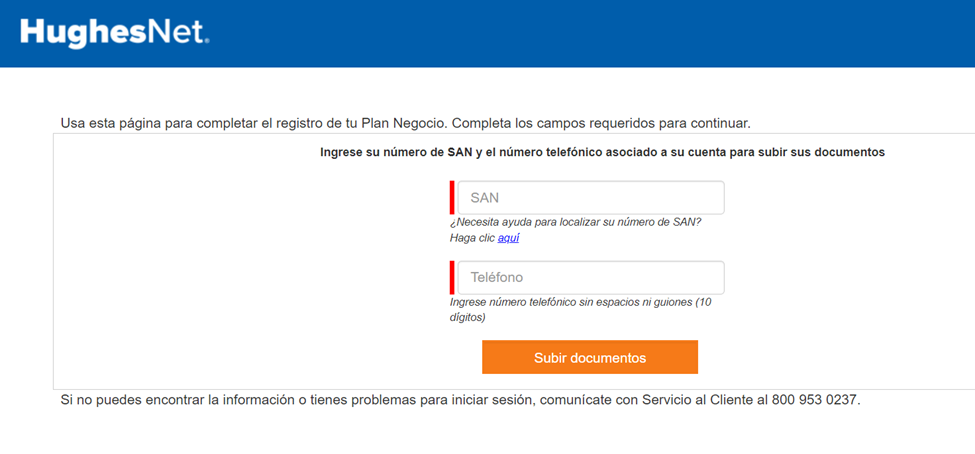
O visitar: https://documento.hughesnet.com.mx 

Si no cuentas con la constancia, puedes obtenerla en la página del SAT, ingresando a www.sat.gob.mx >Sección Otros Trámites >Genera tu constancia de Situación Fiscal.

 a continuación te describimos los paso

  1. Elige el medio de autenticación (contraseña o e.firma)
  2. Registra los datos de autenticación
  3. Selecciona el botón Generar Constancia
  4. Imprime o guárdala en tu dispositivo electrónico

Tu factura (comprobante fiscla) se enviará de forma automática al correo electrónico que tenemos registrado en tu cuenta., una vez que tu pago haya sido acreditado.

Si tienes alguna duda o comentario, puedes comunicarte a Servicio al cliente al: 800 953 0237

¿Cómo puedo recibir información de mis comprobantes fiscales?

De manera predeterminada, recibirás notificaciones por correo electrónico en la dirección que hayas asociado con tu cuenta HughesNet. Si deseas habilitar las notificaciones por SMS para estas alertas, sigue los pasos a continuación.

  • Inicie sesión o regístrate en mi.HughesNet.com.mx 
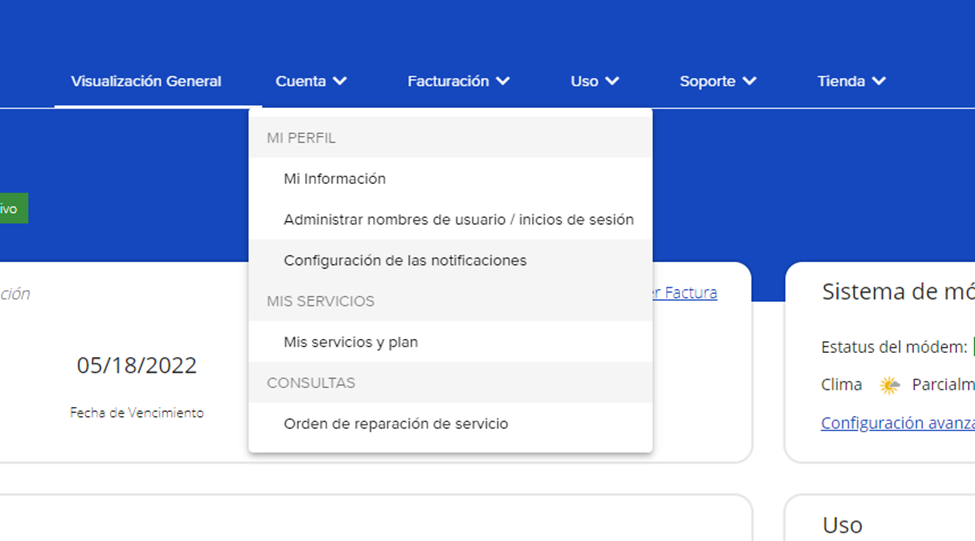
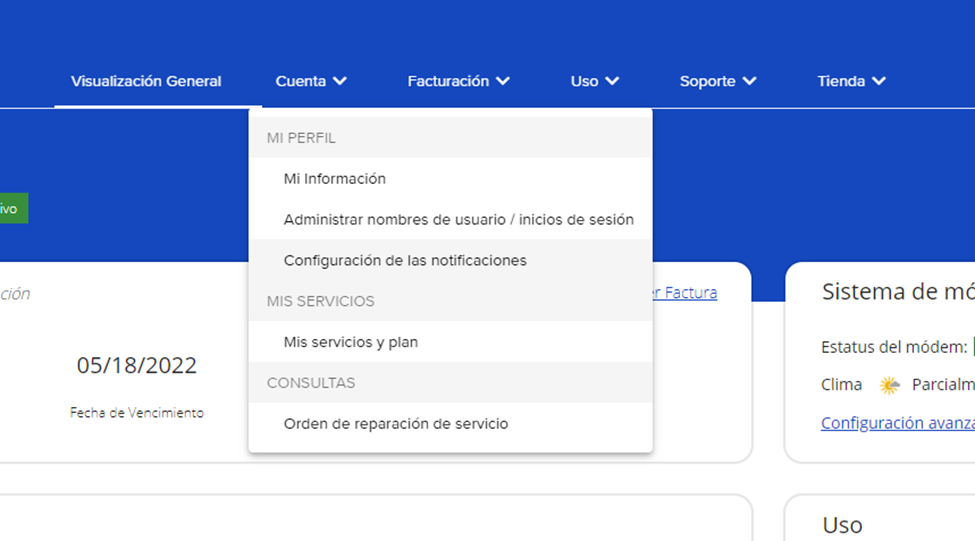
  • Haz clic en “Cuenta” en la parte superior de la página.
  • Luego haz clic en “Configuración de las notificaciones” en el segundo paso de la navegación.
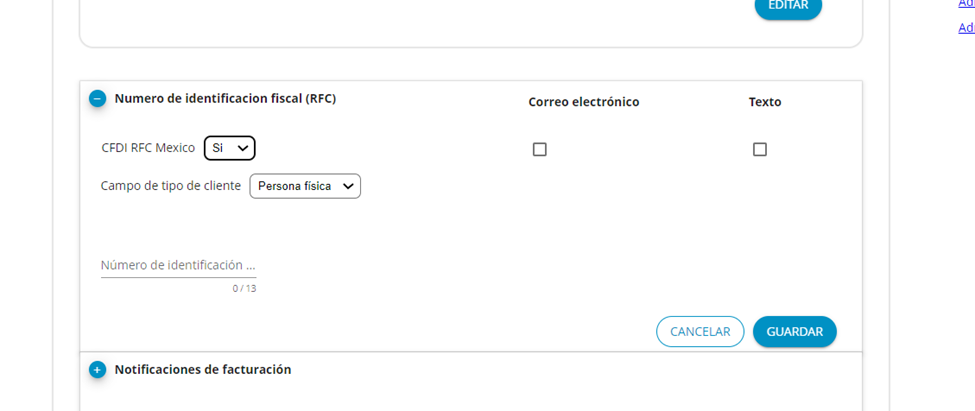
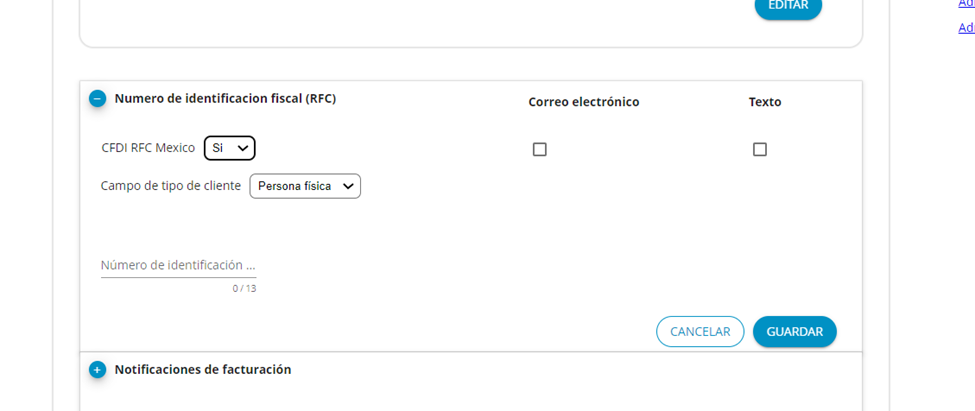
  • Expande el signo ‘+’ al lado de “Registro Federal de Contribuyentes (RFC)”
  • Selecciona “texto” para que las notificaciones se envíen a tu teléfono móvil.

¿Cómo actualizo mi Registro Federal de Contribuyentes (RFC)?

  • Inicia sesión o regístrate en mi.HughesNet.com.mx 
  • Haz clic en “Cuenta” en la parte superior de la página.
  • Luego haz clic en “Configuración de las notificaciones” en el segundo paso de la navegación.
  • Expande el signo ‘+’ al lado de “Número de identificación fiscal (RFC)”
  • Selecciona el campo de tipo de cliente e ingrese su Regsitro Federal de Contribuyentes (RFC).

Luego recibirá una comunicación por correo electrónico pidiéndole que cargue sus documentos. Puede subir constancia de situación fiscal en: https://documento.hughesnet.com.mx/

¿Cuándo puede ser obtenido un comprobante Fiscal?

Es un derecho poder obtener comprobantes fiscales de los servicios que contrata y paga para poder hacer uno antes las autoridades hacendarias, por eso, una vez que sea realizado el pago y aplicado al sistema, será generado su comprobante con todos los lineamientos que marca la legislación.

How do I return my Hughesnet Fusion equipment?

These instructions explain how to uninstall the equipment, pack it, and return it to Hughesnet® in the box you have received. 

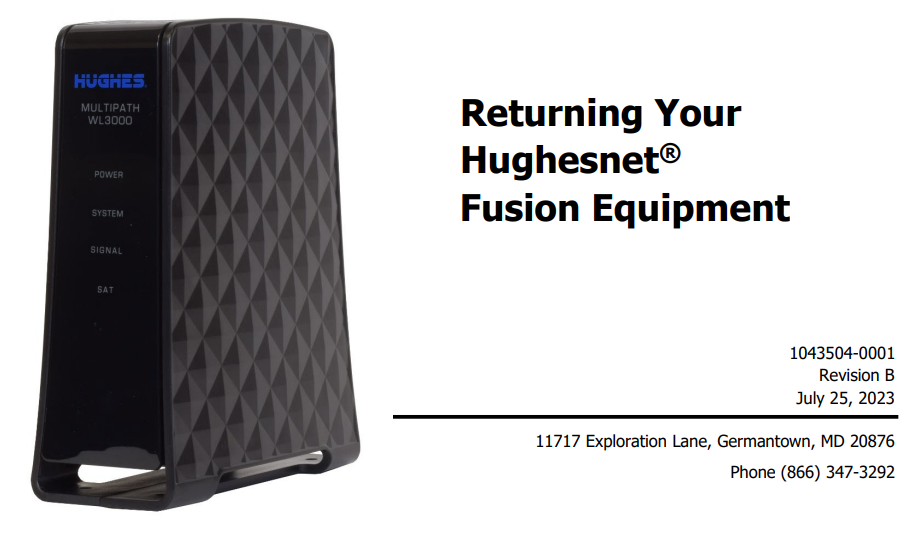
Click here for equipment return instructions for the Multipath Device (WL3000) and Wireless Antenna.